Surveys
CSAT (1 to 5) and NPS (0 to 10) satisfaction surveys after service, with a results dashboard and low-score alerts.
What it is for
Ask customers how the service went and follow the results. The reply is read automatically (a number, stars, an emoji or a word like "great"). A low score becomes an alert and a task for the owner, and happy customers can get an invitation to review you on Google.
Before you start
- Two surveys already exist, off: CSAT (1 to 5, when finished) and NPS (0 to 10, manual). Review the texts and turn them on.
- For the review invitation, add your Google link under Settings › Business.
- The channel (WhatsApp or Instagram) must be connected.
Step by step
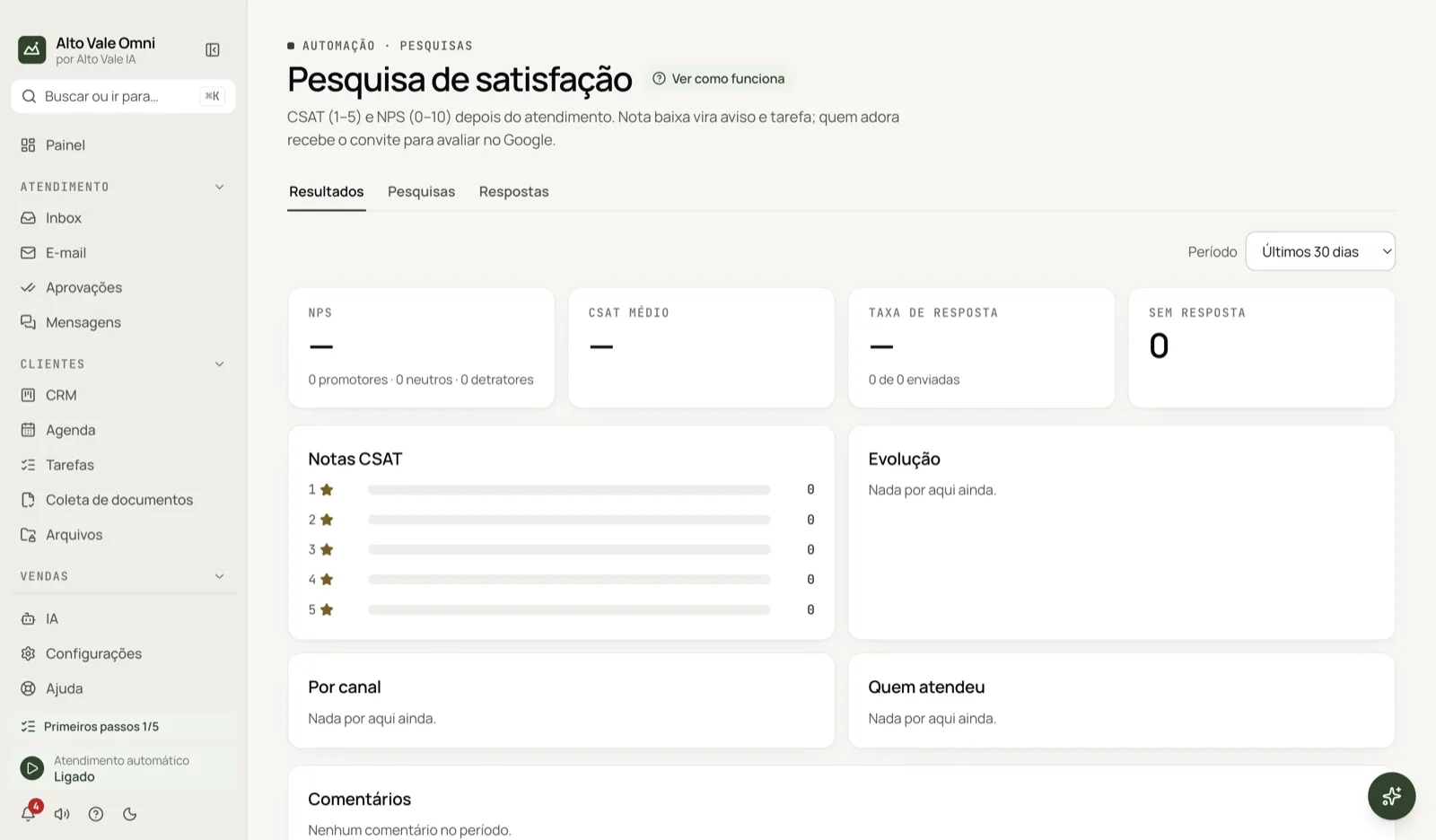
- Open Surveys and go to the Surveys tab.
- Open the CSAT survey and review the question and the thank-you message.
- Set When to send and how long to wait.
- Tick Active and save.
- Follow the Results tab and the Responses tab.
All actions on the screen
Results tab
Shows NPS (promoters, neutrals and detractors), Average CSAT, the share of satisfied customers, the Response rate, the scores, the Trend, and the numbers By channel and Handled by (AI, teammate or flow). The Period selector changes the window. Example: Clínica Bem Viver sees CSAT 4.6 over the last 30 days.
Comments
Lists comments with positive, neutral or negative sentiment. Open conversation takes you to the Inbox.
Responses tab and Low scores filter
Each response with contact, score, comment and when. Low scores shows only those worth a call back. Example: Roberto Alves gave a 2 and Marina Souza phones him.
Surveys tab
Edit each survey:
- When to send: when service is finished, after the appointment (attended) or manual only.
- Wait (minutes), Once every (days) per contact and Expires in (hours).
- Question, Ask for a comment after the score and Comment question.
- Thank-you message and Reply to a low score.
- Business hours only.
Low score: alert the owner and create a task
With low scores (CSAT up to 2, NPS up to 6) the app alerts you and creates a task. The AI never argues about a score: replies are fixed texts.
Invite promoters to review on Google
Optional: people who give a high score receive the review link. Note: Google discourages asking only happy customers for reviews.
Send satisfaction survey (Inbox)
In the conversation menu in the Inbox, asks for the score now. Example: after Ana Ribeiro's cleaning (R$ 150), Marina sends the survey on the spot.
Shortcuts
- ⌘K opens the command palette; F1 opens Help.
Common problems
The survey did not go out. It is skipped if the customer wrote again, a teammate is in the conversation, it is outside business hours (it is rescheduled) or the contact is personal. The reason appears in the list.
Old flow-based surveys stopped. With a "when finished" survey on, those flows no longer fire; the screen lists which.
A reply was not understood. Messages that do not look like a score continue as a normal conversation.
See also
Screen in the app: /surveys · In the app, press F1 on this screen to open this guide.
Still have a question?
Talk to the Alto Vale IA team on WhatsApp. Tell us the app, the screen and what happened.