Flows
Step-by-step service scripts (menu, questions, booking, handover to a person) that start on their own or when you start them.
What it is for
A flow is a script that guides the conversation: it greets, shows a menu, asks questions, saves the answers, adds tags and hands over to a person when needed. Use it for first triage, booking, an out-of-hours notice and satisfaction surveys.
Before you start
- Keep automatic service on: while it is paused, or while a teammate is in the conversation, no flow starts by itself.
- Flows never run in groups.
- To build one with AI help, turn on a provider under AI.
Step by step
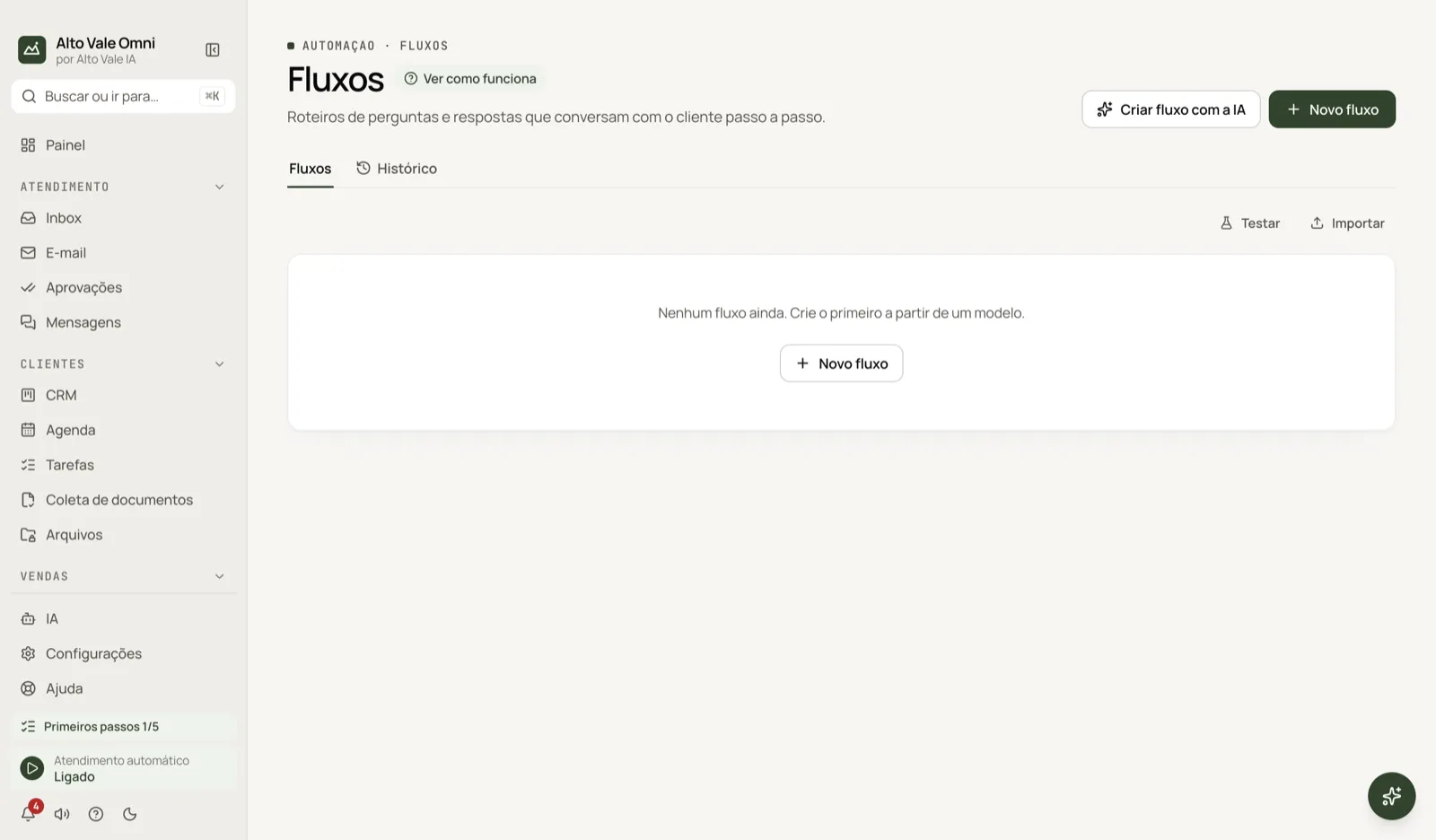
- Open Flows and click New flow.
- Pick a template (for example Welcome with menu) or Describe with AI.
- Choose when it starts, for example on the first message of a new conversation.
- Click Create and open the editor and adjust the steps.
- Use Test to simulate: nothing is sent to anyone.
- Resolve any pending items, save and turn the flow on.
All actions on the screen
New flow and templates
The wizard has two steps: what the flow does and when it starts. Templates: Welcome with menu, Qualify opportunity, Schedule, Satisfaction survey, Outside business hours, Blank and Describe with AI. Example: Marina Souza creates "First triage" for Clínica Bem Viver with the options cleaning (R$ 150), whitening (R$ 890) and talk to Dr. Paula.
Tabs Flows and History
Flows is the list; History shows each run, with the ones that completed and those that failed.
Cards and groups
Cards are grouped as Start on their own, The AI starts, You start and No trigger. Each shows how it starts and how many runs it had.
On / Off switch
On: the flow starts on its own. Off: it only starts when you start it in a conversation.
Edit
Opens the editor with these steps: Message, File, Question, Menu, Condition, AI reply, Tool, Set field, Add tag, Hand over to a teammate, Show queue position, Wait and End. Use Add step, Validate and Save.
Trigger (When does this flow start?)
Choose one or more ways:
- first message of a new conversation;
- message with words or phrases (contains, equals or starts with);
- when the conversation is finished;
- customer not replying for a while;
- a scheduled day and time;
- when a tag is added;
- a teammate starts it;
- the AI starts it (you describe when to use it).
Under Restrictions limit by channel, business hours, new contacts, tag and "at most once per contact every…".
Test
Type what the customer would write (for example "hi, I want a quote") and see which flow would start and why. There is also a chat tab that runs the steps with sample data.
Duplicate, Export to file and Import
Copy the flow, save it to a file or bring one in from another computer.
Arrows ↑ ↓ (priority)
If two flows could start on the same message, a keyword beats "first message" and, among equals, the one higher in the list wins. Only one starts per message.
Overlapping triggers
Conflict warning. Change the order, restrict by channel or hours, or turn one off.
Start flow (in a conversation)
In the Inbox, a teammate can start a flow by hand, even if it is off. Example: start "Book a time" for Ana Ribeiro.
Shortcuts
- ⌘K opens the command palette; F1 opens Help.
Common problems
The flow did not start. Check that it is on, automatic service is not paused and no teammate is in the conversation. Use Test to understand the decision.
I cannot turn it on. The flow has pending items: click the notice to jump to the first one.
Two flows compete for the same message. Use the arrows or the restrictions.
See also
Screen in the app: /flows · In the app, press F1 on this screen to open this guide.
Still have a question?
Talk to the Alto Vale IA team on WhatsApp. Tell us the app, the screen and what happened.