Automations
Sequences that act on their own, such as reviving a cold conversation, flagging a stalled opportunity or after-sale follow-up, with limits and simulation.
What it is for
Rules that act on their own after something happens: a customer did not reply, an opportunity is stuck in a stage, a tag was added, a conversation finished or a sale was won. Each rule has a sequence of steps (message, task, tag, handover to a teammate) with limits so nobody is bothered.
Before you start
- Automatic service must be on: while it is paused, no automation sends or starts.
- For funnel triggers (opportunity idle, entered a stage, won), use the CRM.
- Every automation is created off: adjust it, simulate it and only then turn it on.
Step by step
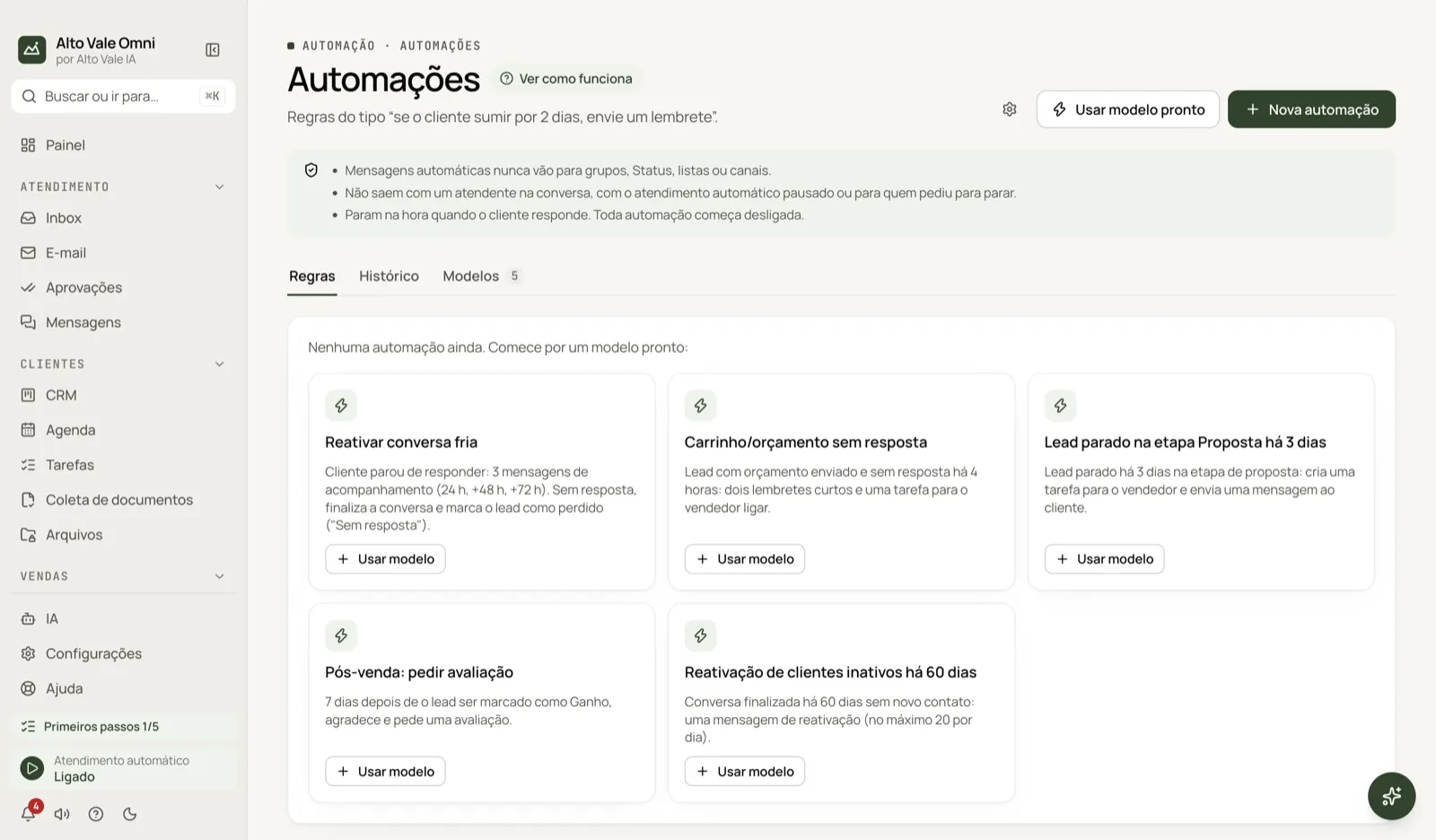
- Open Automations and click Use a ready-made template (or New automation).
- Choose the trigger and the delay ("After").
- Edit the steps and the messages.
- Set the limits: attempts, interval and hours.
- Click Simulate to see who would receive it.
- Click Turn on.
All actions on the screen
New automation and Use a ready-made template
The template creates an automation that is off. Example: Marina Souza starts from "Cold conversation" to follow up with whoever asked for a whitening quote (R$ 890) and went quiet.
Trigger (When)
Options: Cold conversation: customer does not reply, Customer went silent mid-flow, Opportunity idle in a stage, Opportunity entered a stage, Tag added to the contact, Conversation finished (win-back) and Opportunity won (after-sale). "After" sets the delay, and "Ignore anything idle for more than" avoids reviving very old conversations.
Only if (conditions)
Restrict by channel, open opportunity, tags, service status, funnel stage, value and chance to close. All must hold. Groups and conversations with a teammate are always left out.
Steps (Then)
Each step waits some time after the previous one. Types: Send message, Start a flow, Move the opportunity to a stage, Add or Remove tag, Create a task for a teammate, Hand over to a teammate, Notify the teammate, Send to external system / call tool, Finish the conversation and Mark the opportunity as lost. Use Add step for more.
Personalize with AI
Rewrites the message for each customer without changing the information. If the AI fails, the original text goes out. Example: "Hi Carlos! Does it still make sense to book your cleaning (R$ 150) with Dr. Paula?"
Limits
Maximum attempts per conversation, minimum interval between messages, allowed hours, a daily send cap and what to do when attempts run out with no reply: just stop, finish the conversation, or finish it and mark as lost.
Simulate
Shows a preview of who would receive it, without sending anything.
Turn on and Turn off
Saving does not turn it on. Turning it off interrupts conversations that were in the sequence.
Edit and Delete
Edit any time. On delete, you see how many conversations were in the sequence and will be interrupted.
Numbers for each automation
In progress now, Attempts, Replies, Stopped at the limit, Conversions and Sent today. They show whether the sequence works.
Shortcuts
- ⌘K opens the command palette; F1 opens Help.
Common problems
Nothing is sent. Automatic service may be paused, the allowed hours may be over or the daily cap was reached.
A conversation stopped receiving. The sequence stops when the customer replies, when someone takes over, or when the customer asks to stop.
A personal contact or group gets nothing. By design: automations never send to them.
See also
Screen in the app: /automations · In the app, press F1 on this screen to open this guide.
Still have a question?
Talk to the Alto Vale IA team on WhatsApp. Tell us the app, the screen and what happened.