Inbox
All WhatsApp and Instagram conversations in one place: read, take over from the AI, reply, add notes and schedule.
What it is for
Gathers WhatsApp and Instagram Direct conversations. The AI replies while automatic service is on; you see everything, take over a conversation whenever you want and hand it back later. Emails live in Email.
Before you start
- WhatsApp connected (Settings › Service › WhatsApp and Instagram).
- For the AI to reply: an AI turned on and Automatic service set to On.
Step by step
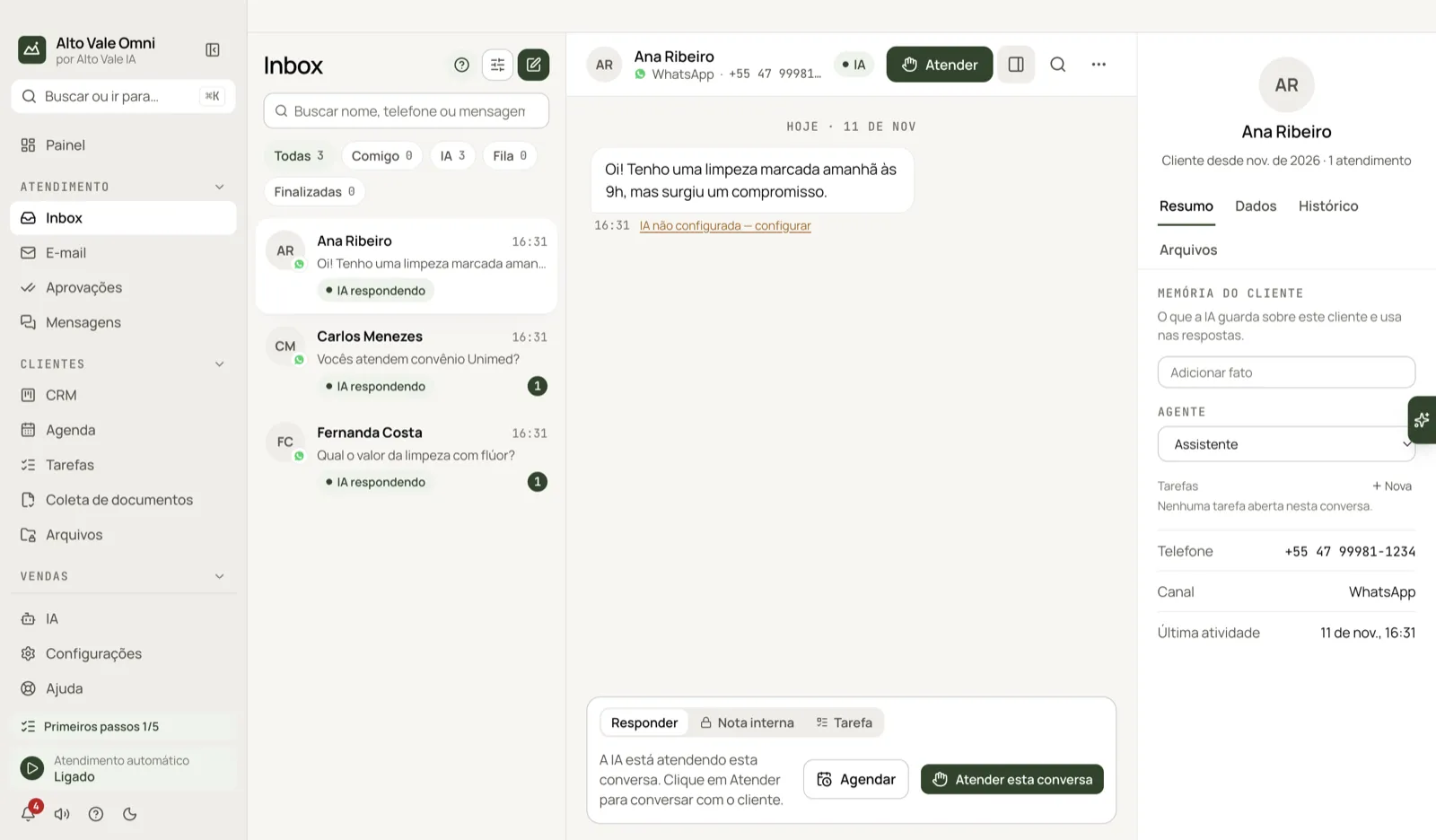
- Pick a conversation in the list, such as Ana Ribeiro's.
- Read the messages. The AI replying or With you badge shows who is handling it.
- Click Pick up to take over; the AI pauses only in that conversation.
- Type in Reply and send with Enter.
- When done, finish or hand back to the AI from the ⋯ menu.
All the actions on the screen
Search
Looks through name, phone, message text and audio transcripts. Example: "Unimed" finds Carlos Menezes's question.
Quick filters
All, Mine (in the queue or with you), AI (AI or flow handling), Queue and Finished. Example: Mine shows what Marina Souza needs to answer.
Advanced filters
The filter button narrows by channel, tag, agent, unread only and order.
New conversation
The pencil button starts a conversation with a contact.
Pick up
You take over and the AI stops replying there. With you · AI paused appears.
Pick up this conversation
The same action, in the message box, when the AI is handling it.
Contact card
The button next to Pick up opens the panel with the Summary, Details, History and Files tabs. In Summary: Customer memory (use Add fact, e.g. "Prefers times after 6 pm"), the conversation Agent and tasks.
Search in the conversation
The magnifier in the header searches inside the open conversation.
The ⋯ (More) menu
In groups: Service (finish, hand back to the AI, start a flow), Conversation (show only photos and files), Contact (history, mark as personal or internal, review this conversation) and View (AI notes, Conversation details).
Reply, Internal note and Task
Internal note is a message for the team; the customer does not get it. Task creates a reminder: "Call Fernanda Costa tomorrow 9 am".
Suggest with AI and Attach
The AI suggests the reply (Tab accepts). Attach sends a file from Documents, such as the price list.
Schedule send
In the ▾ next to send or the Schedule button: schedules a message, a flow or a task, with repetition.
Why?
On each automatic message, shows who replied, the agent and the documents consulted.
"Getting started" badge
The badge at the bottom of the menu shows what is left to set up.
Shortcuts
- ⌘K searches conversations; ⌘/ lists all shortcuts.
- ⌘⇧A pick up, ⌘⇧E finish, ⌘⇧I hand back to the AI, ⌘⇧N internal note.
- Enter sends, Shift+Enter adds a line, / opens quick messages.
Common problems
The AI did not reply. Check the badge: AI paused (service paused) or a Who the AI serves rule. Ask the Assistant.
I replied from my phone and the AI stopped. That is expected: it does not talk over you.
See also
Screen in the app: /inbox · In the app, press F1 on this screen to open this guide.
Still have a question?
Talk to the Alto Vale IA team on WhatsApp. Tell us the app, the screen and what happened.