Bulk send
Personalized campaigns from a spreadsheet, sent gradually by WhatsApp, email or Instagram Direct.
What it is for
Send a personalized message to a list of contacts without firing everything at once: the campaign goes out gradually, within limits for time and volume. Use it to remind patients about follow-ups, announce a promotion or deliver a PDF to whoever asks for it.
Before you start
- Keep WhatsApp connected under WhatsApp and Instagram (or an email account that can send, for email campaigns).
- Have a
.xlsxor.csvspreadsheet with a header row (name, phone…), or a.zippackage. - Review the limits in Safe sending: a campaign never goes beyond them, the lowest always wins.
- The app must stay open: the campaign resumes where it left off when you reopen it.
Step by step
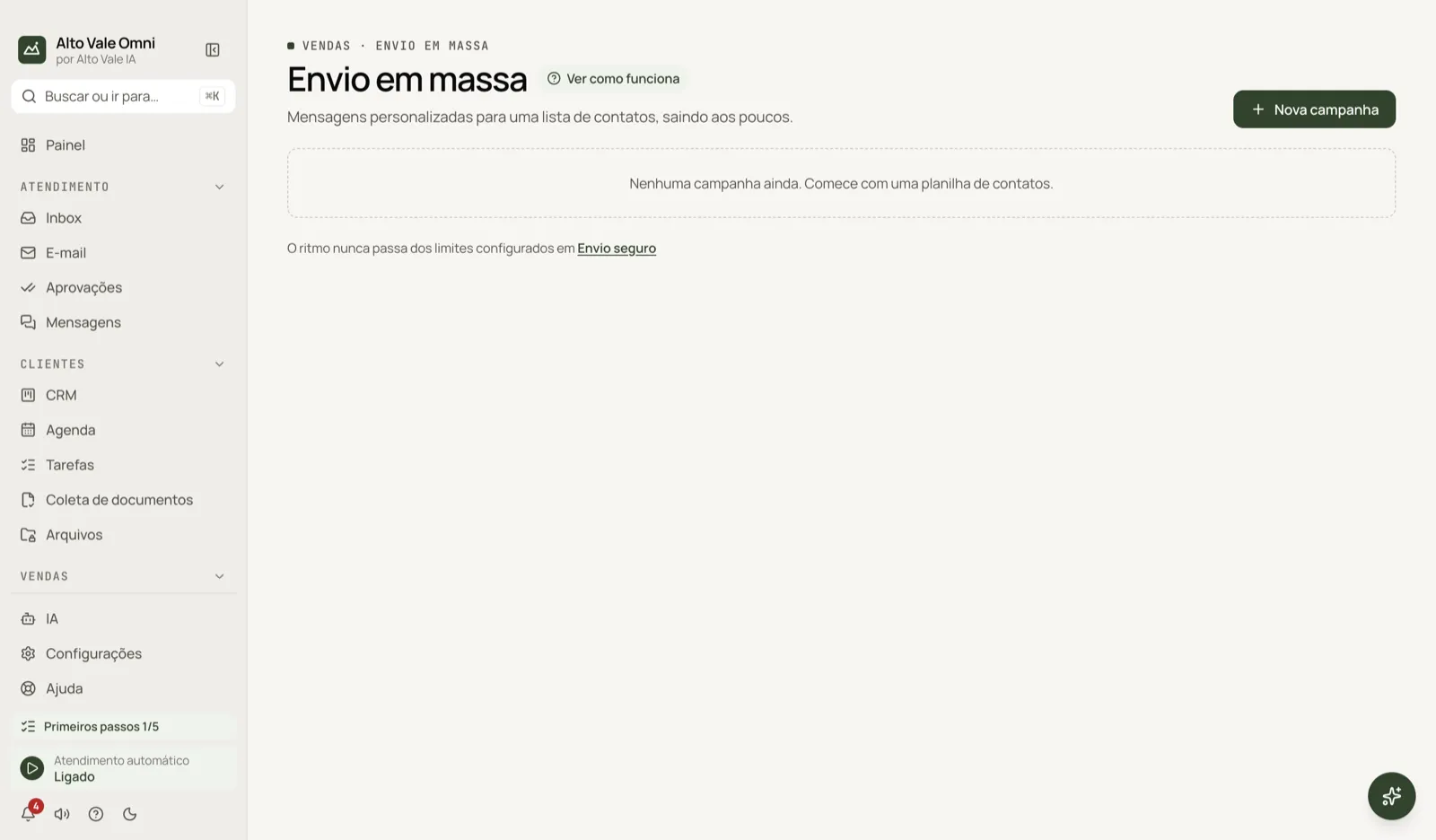
- Under Sales › Bulk send, click New campaign.
- In Contacts, choose the spreadsheet. Check the phone and name columns.
- In Attachments (optional), choose a folder or a file for everyone.
- In Message, write the text with variables such as
{{primeiro_nome}}. - In Pace, set how many sends per day, the interval and the time window.
- In Review and schedule, name it, tick the consent box and click Schedule send.
All actions on the screen
New campaign
Opens the five-step wizard. Example: Marina Souza builds "Cleaning reminder" with 40 patients of Clínica Bem Viver.
Filters All, In progress and Finished
Show only the campaigns in the chosen group. Example: In progress to see what is still going out.
Choose spreadsheet or .zip
Reads the first visible sheet. Rows with no phone, an invalid phone or a duplicate are left out, with the reason. Example: "patients-list.xlsx: 38 of 40 rows with a valid phone".
Example spreadsheet and Example .zip package
Save a ready-made template to copy. Use them if you are unsure how to prepare the data.
Choose folder with everything
Accepts a folder (or .zip) with the spreadsheet and one subfolder per customer, holding photos, a PDF and a dados.txt. Example: the "Ana Ribeiro" subfolder holds her quote.pdf.
Choose folder and File for everyone
Each file goes to the contact whose name, phone or email appears in the file or folder name. A "file for everyone" (up to 5) goes to the whole list. Example: the flyer "whitening-R$890.pdf" for everybody.
Ask the AI to read the rest
The AI tries to match files that have no owner, and anything it matched is marked "AI, check it". Requires a provider under AI.
Message, Variables and Save as template
Use {{nome}}, {{primeiro_nome}}, {{telefone}} and the spreadsheet columns. Example: "Hi {{primeiro_nome}}, it is time for your cleaning (R$ 150)." Rows with an empty variable do not receive it. Save as template keeps the text; Use a saved template… brings it back.
Write with AI and Prepare with AI
Write with AI drafts text from your request. Prepare with AI › Open chat talks it through, shows examples and lets you review. Neither sends anything.
Include how to leave the list
By default adds "To stop receiving messages, reply SAIR." Anyone who replies SAIR is not messaged again.
Automatic reply
Whoever answers a keyword instantly gets a text and attachments. Example: "Reply QUERO and we will send the whitening plan", and Carlos Menezes receives the PDF.
Start an automation flow
Starts a flow in each contact's conversation, right after sending or when the person replies.
Channel and Instagram
Choose WhatsApp, email (with account and subject) or Instagram Direct. On Instagram, Choose followers builds the list; only text is sent.
Pace and limits
Set a limit per day, week or month, minimum interval, random variation, Send from, Send until, Start on and End on. The screen estimates how many days it will take.
Pause, Resume, Cancel and Delete
Pause and resume control the campaign; cancel stops anyone still queued from receiving it; delete removes the campaign (messages already sent stay in the conversations).
Send now
Sends the next in the queue (or one chosen contact) immediately, ignoring the time window and interval. Anyone who asked to opt out still does not receive it.
Retry and Open conversation
Retry N resends the failed ones. Open conversation takes you to the Inbox with that contact.
Shortcuts
- ⌘K opens the command palette; F1 opens Help.
Common problems
The campaign paused by itself. There were repeated failures or the channel asked to reconnect. Check the connection under WhatsApp and Instagram and use Resume.
Someone shows "Not sent". See the reason in the list: opted out, no WhatsApp, empty variable, a teammate in the conversation.
An .xls spreadsheet will not open. Save it as .xlsx or .csv.
See also
Screen in the app: /bulk-send · In the app, press F1 on this screen to open this guide.
Still have a question?
Talk to the Alto Vale IA team on WhatsApp. Tell us the app, the screen and what happened.