CRM
Follow conversations, contacts and sales in one place, as a board, list or funnel, and drag each card to the right stage.
What it is for
CRM shows in one place where each conversation stands, who your contacts are and which stage each sale is in. At the top you pick the view: Conversations, Contacts or Sales.
Before you start
- Connect WhatsApp or Instagram (Settings › Service) so conversations show up.
- The Sales funnel stages come ready for your type of business; adjust them later with Configure funnel.
Step by step
- Open CRM in the Customers sidebar group.
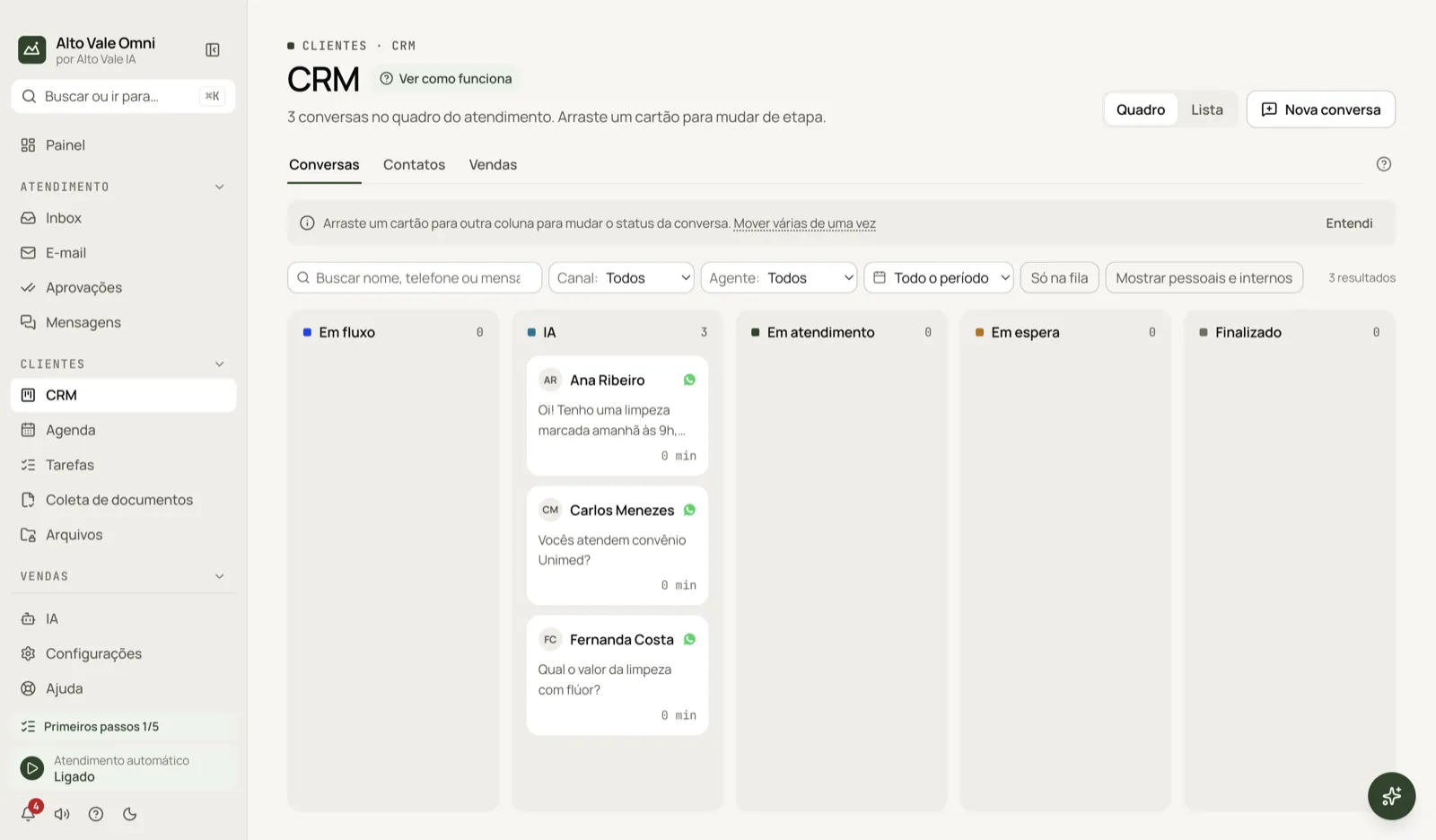
- In Conversations, see the board with the columns In flow, AI, In service, Waiting and Finished.
- Drag Ana Ribeiro's card from AI to In service when Marina Souza takes over the chat.
- Open Sales to follow the funnel and Contacts to browse the full list.
All the actions on the screen
Board and List
The Board | List switch changes how conversations are shown. Example: Marina prefers List to sort by last message; the list has pages and sorting by column.
New conversation
Starts a chat with a contact. Example: pick Fernanda Costa and send the quote for the R$ 150 cleaning.
Conversations tab
Each card shows the name, channel and last message. Drag it to another column to change its status. Example: Carlos Menezes asked about Unimed coverage and sits in AI.
Move several at once
Tick the box at the card's corner (or use Cmd/Ctrl+click and Shift+click), drag one of the selected cards or use Move to. The app asks you to confirm. Example: move Ana and Carlos together to Finished.
Search, Channel, Agent and period
These filter the board. Example: Channel: WhatsApp plus the search "cleaning" to see only who asked about cleaning.
Queue only
Shows only the conversations waiting for a teammate.
Show personal and internal
Contacts marked as personal or internal stay out of the board and the counts; turn this on to see them. Example: Dr. Paula's family, who write to the same WhatsApp.
Contacts tab
All contacts, with search by name, phone, email or tag. Select several and use Change type… (Client, Personal, Internal). Open a contact to see its card.
- Import: from a file (CSV or vCard), from WhatsApp or from Instagram. It only registers contacts; no message is sent.
- Export: spreadsheet (CSV) or contact cards (.vcf).
- Row menu: Start conversation, Save contact, Copy name, Copy phone.
Sales tab
Three sections: Funnel, My tasks and Reports.
- Funnel: drag the opportunity between stages. Example: "Whitening R$ 890 – Roberto Alves" to the next stage.
- Create opportunity: opens a sale for a contact. Mark as won and Mark as lost close it; when losing, give the reason.
- My tasks: next actions that are overdue, due today and upcoming.
- Reports: win rate, funnel value, conversion by stage, loss reasons, with CSV export.
- Configure funnel: stage names and colors, automatic opportunity creation and loss reasons.
Shortcuts
- Esc clears the card selection.
- ⌘K opens the palette (search or jump to); ⌘J opens the assistant.
Common problems
A conversation will not go to "In service". If it is not with a teammate, first drag it to In service (Take over). I cannot see a contact on the board. It may be marked personal or internal: turn on Show personal and internal.
The funnel is empty. Create an opportunity with the button or from a contact's card.
See also
Screen in the app: /crm · In the app, press F1 on this screen to open this guide.
Still have a question?
Talk to the Alto Vale IA team on WhatsApp. Tell us the app, the screen and what happened.