System connections
Let the AI look up your website and other systems during a conversation, and notify or send data to other systems.
What it is for
Connect Omni to other systems so the AI can answer with real data (price, stock, order status) and so other tools are notified or fed when something happens. Each connection spells out exactly what the AI may do. Connections only call external systems: nothing outside can call the app.
Before you start
- Turn on a provider under AI so the AI can use connections in conversations.
- Have the website or system address at hand and, if there is one, the token or access key.
- Never use keys with full power (such as
service_role): give the AI only what it needs to read.
Step by step
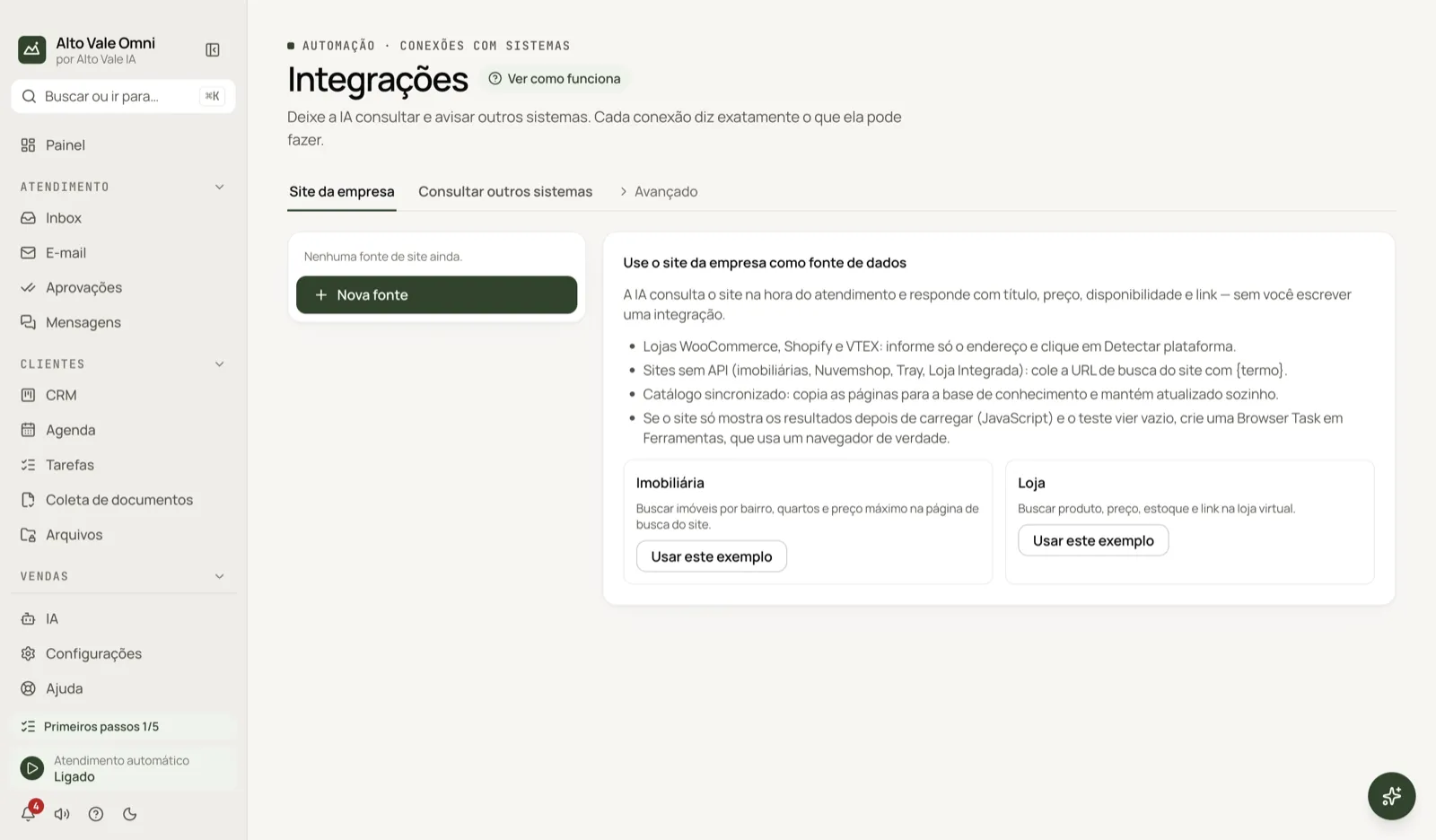
- Open Automation › System connections.
- To teach the AI about your website, go to Company website and click New source.
- Enter the address and click Detect platform.
- To look up one of your systems, use Look up other systems › New tool.
- Click Test before turning it on.
- Follow the results in the History tab, inside Advanced.
All actions on the screen
Company website › New source
Each source becomes a tool that returns title, price, availability and link. WooCommerce, Shopify and VTEX stores only need the address. Sites without an API use the search URL with {termo}. Example: Clínica Bem Viver registers its website so the AI can quote the cleaning (R$ 150) and whitening (R$ 890).
Use this example (Real estate and Store)
Fill in a template source for you to adjust. Handy for your first connection.
Detect platform
Recognizes the website platform and suggests how to query it. If the site only shows results after loading JavaScript and the test comes back empty, create a Browser Task under Tools.
Synced catalog
A source can copy pages into the AI's knowledge, with an update schedule, respecting robots.txt.
Look up other systems › New tool
Register an API (HTTP) or a database (read-only SQL), with name, description (the AI reads it to decide when to use it), parameters and authentication. Under Fields the AI can see, list only what may leave; the rest of the response never leaves Omni. Example: "order status" so Fernanda Costa can ask how her order is going.
Test
Runs the tool with test values and shows the Original response and What the AI receives.
On
Turns the tool on or off. Tools that require confirmation become approvals.
Advanced › Tool servers (MCP)
Connects servers that follow the MCP standard (by address, with a token or login). Test connection lists the tools, and you tick which ones the AI may use.
Advanced › Send data to other systems
Sends app data to HubSpot, Pipedrive, Google Sheets or an address of your own.
Advanced › Read web pages
Teaches the app to extract data from specific pages with reading rules you test against a sample text.
Advanced › Notify other systems
Creates webhooks: an address that gets a notice when something happens, with a signing secret. Example: notify the clinic's system when Ana Ribeiro confirms her appointment.
Advanced › History
Every call made, with date, duration, input, output and error. Personal data appears masked.
Shortcuts
- ⌘K opens the command palette; F1 opens Help.
Common problems
The test comes back empty. The site may build results with JavaScript, or require a login. Try the Browser Task or check the search URL.
The AI does not use the tool. Check that it is On and the description says clearly when to use it.
The call fails. See the error in History; check the token and that the system is online.
See also
Screen in the app: /integrations · In the app, press F1 on this screen to open this guide.
Still have a question?
Talk to the Alto Vale IA team on WhatsApp. Tell us the app, the screen and what happened.