AI: providers and connection
Turn on one or more AIs, set the priority order and see what happens when one runs out of credits.
What it is for
The AI connection tab links Omni to an AI that answers customers. You can turn on several and set the order: the first answers and, if it fails, the next one takes over.
Before you start
- An API key (Anthropic, OpenAI or Gemini), or a local AI (Ollama), or Claude, Codex or Gemini already installed on the computer via command line (experimental).
- For commercial use, prefer an API key: the command-line options use the account signed in on the computer.
Step by step
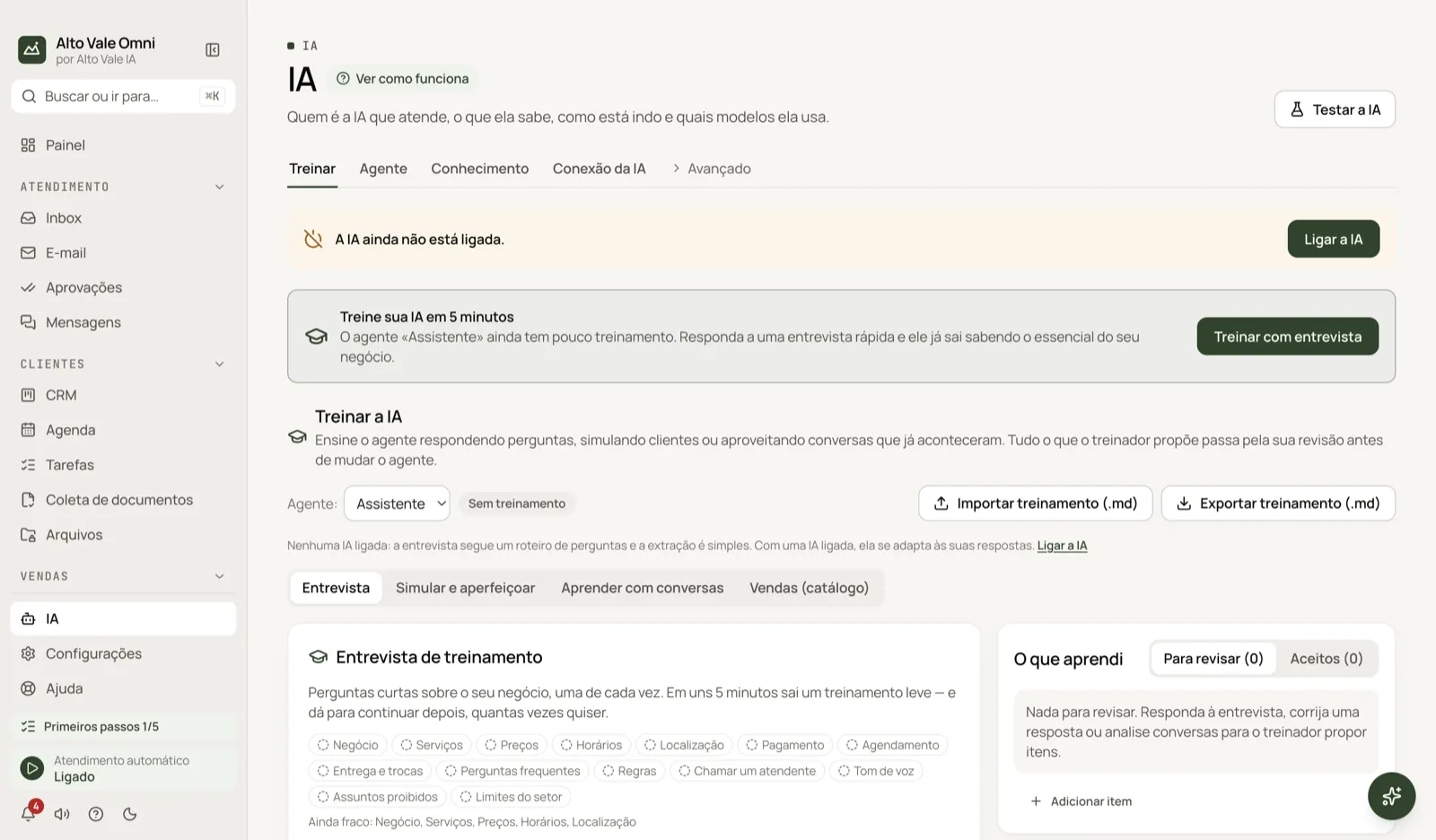
- Open AI › AI connection.
- On the chosen AI's card, paste the API key and pick the Model.
- Click Test.
- Turn the On switch on.
- If you turn on more than one, drag by the handle (⋮⋮) to set the Priority order.
All the actions on the screen
API key and Model
The key is stored encrypted on this computer (Key saved); Remove key deletes it. Refresh model list fetches the available ones. Example: the clinic pastes the Anthropic key and picks a model from the list; under Other… it types the ID.
Test
Confirms the key and model work. Example: the OpenAI key test shows "Key rejected" because it was copied with a trailing space.
OpenAI-compatible
For OpenRouter, LM Studio, Groq, DeepSeek and other services with an OpenAI-style API. Pick the Service (or Other, entering the API base URL), paste the key (optional in LM Studio) and the model. Subscriptions that only exist on a website or app (such as Adapta) are not enough: you need a compatible API key.
Local AI (Ollama)
Runs on the computer itself, with no per-call cost. There is an Install a local AI on this computer button. Example: Clínica Bem Viver uses Ollama so nothing leaves the reception computer.
Claude, Codex and Gemini via command line
They use the account signed in on the machine. If there is no login, Sign in to Claude (or Gemini) appears; finish in the terminal that opens and click Test again. Gemini CLI does not read images.
Priority order
AI 1 answers first. Change the order by dragging, with the ↑/↓ buttons, or with the arrow keys on the handle; it saves at once.
Try now
When an AI runs out of credits, hits its usage limit or loses its login, Omni moves to the next enabled one and the card shows, for example, "Out of credits — using the next one in the list until 14:00". Try now puts that AI back in line before the time.
Audio, image and video
Audio transcription (local by default) and photo reading. Photos go to the first enabled AI that can see; if none can, Enable an AI that reads images appears.
Options for each AI
Show the options for … opens advanced fields such as the server address.
Shortcuts
- ⌘J opens the Assistant.
- In the Inbox message field, ✨ or Ctrl+J asks for another suggestion.
Common problems
"The AI stopped replying" (red banner). All enabled AIs stopped. Check credits, keys and logins here.
"Out of credits" or "Usage limit". Top up with the provider or turn on a second AI as backup.
"Key rejected". Generate another key with the provider and paste it again.
Ollama is not running. Open Ollama on the computer and click Test.
See also
Screen in the app: /ai · In the app, press F1 on this screen to open this guide.
Still have a question?
Talk to the Alto Vale IA team on WhatsApp. Tell us the app, the screen and what happened.