Catalog
The official product, price and stock data the AI uses to answer, imported from a website, a spreadsheet or added by hand.
What it is for
The Catalog is the official source of products, services, prices and stock. The AI only talks about what is here; if it quotes a price that is not in the catalog, the reply is held in Approvals.
Before you start
- To import from a website, register it in System connections (WooCommerce, Shopify, VTEX or pages with product data).
- For a spreadsheet, have a CSV or Excel file with name and price.
Step by step
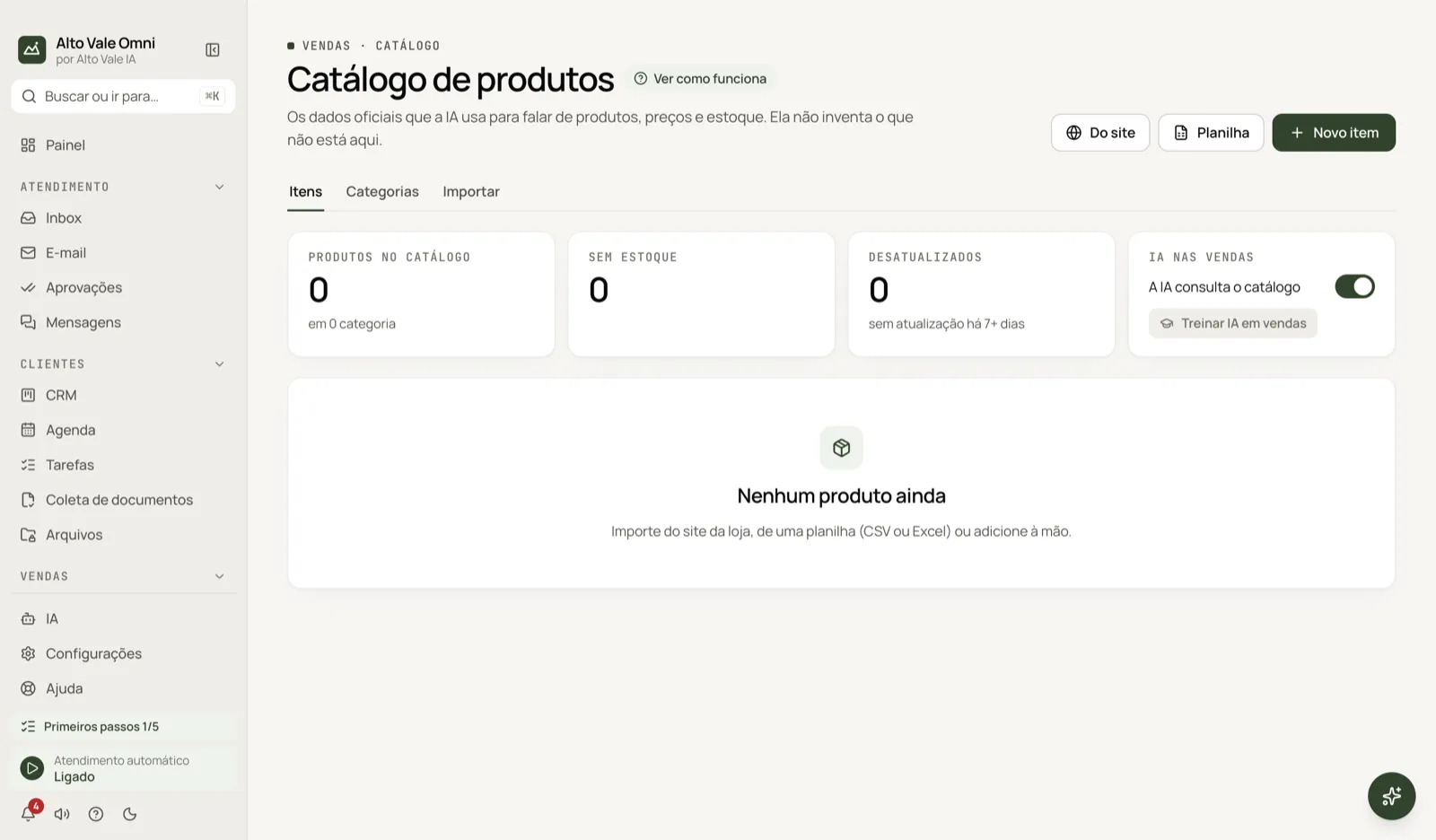
- Open Catalog and the Import tab.
- Choose From website, Spreadsheet or Add manually.
- Check the columns (name, price, category, stock) and import.
- In Items, adjust price and stock, such as "Cleaning R$ 150" and "Whitening R$ 890".
All the actions on the screen
Top cards
Products in the catalog, items out of stock (the AI says they are unavailable) and outdated ones.
Items tab
Search by name, code or brand, with filters for category, availability, source, status and order (name, lowest or highest price, recently updated). Click an item to view and edit.
- Remove from catalog hides the item from the AI; Bring back restores it under Status › Out of the catalog.
New item
Registers name, code (SKU), price, sale price, availability, stock, link, image, category, brand, description and features. Example: "Laser whitening", R$ 890.
Categories tab
Shows how many items each category has. The category comes from the import or the product record.
Import tab
- From website: pick the source and frequency (only when I ask, every 6 or 12 hours, daily, 3 days, weekly); Import now reads the site. If the site is down or returns far fewer products, nothing is deleted.
- Spreadsheet: say which column is each field and which become features; reimporting the same spreadsheet updates the same products.
- Add manually: for a few items or services.
- On each source: Update now and Remove this source.
Train the AI in sales
Generates arguments and replies to objections per product. Example: "Why whiten with Dr. Paula?".
The AI looks up the catalog
A switch that turns the AI's product tools on or off.
Download
Exports the catalog as Excel, CSV or Text (.md).
Shortcuts
- ⌘K opens the palette; ⌘J opens the assistant.
Common problems
The update failed. Nothing is deleted; what vanished from the source stays "Out of the catalog". My edit disappeared. Imported products are refreshed from the source; edit at the source or keep them manual. The AI quotes a wrong price. Fix the item here and check Approvals.
See also
Screen in the app: /catalog · In the app, press F1 on this screen to open this guide.
Still have a question?
Talk to the Alto Vale IA team on WhatsApp. Tell us the app, the screen and what happened.