Messages
Ready-made texts, automatic messages, scheduled sends and the Safe sending limits.
What it is for
Keeps your ready-made texts and controls sends set for a given time. Four tabs: Quick messages, Automatic messages, Scheduled and Safe sending.
Before you start
- To attach files to a quick message, add them to Documents first.
- The app uses WhatsApp the way a browser would: many messages started by the business can get the number blocked. Safe sending exists to prevent that.
Step by step
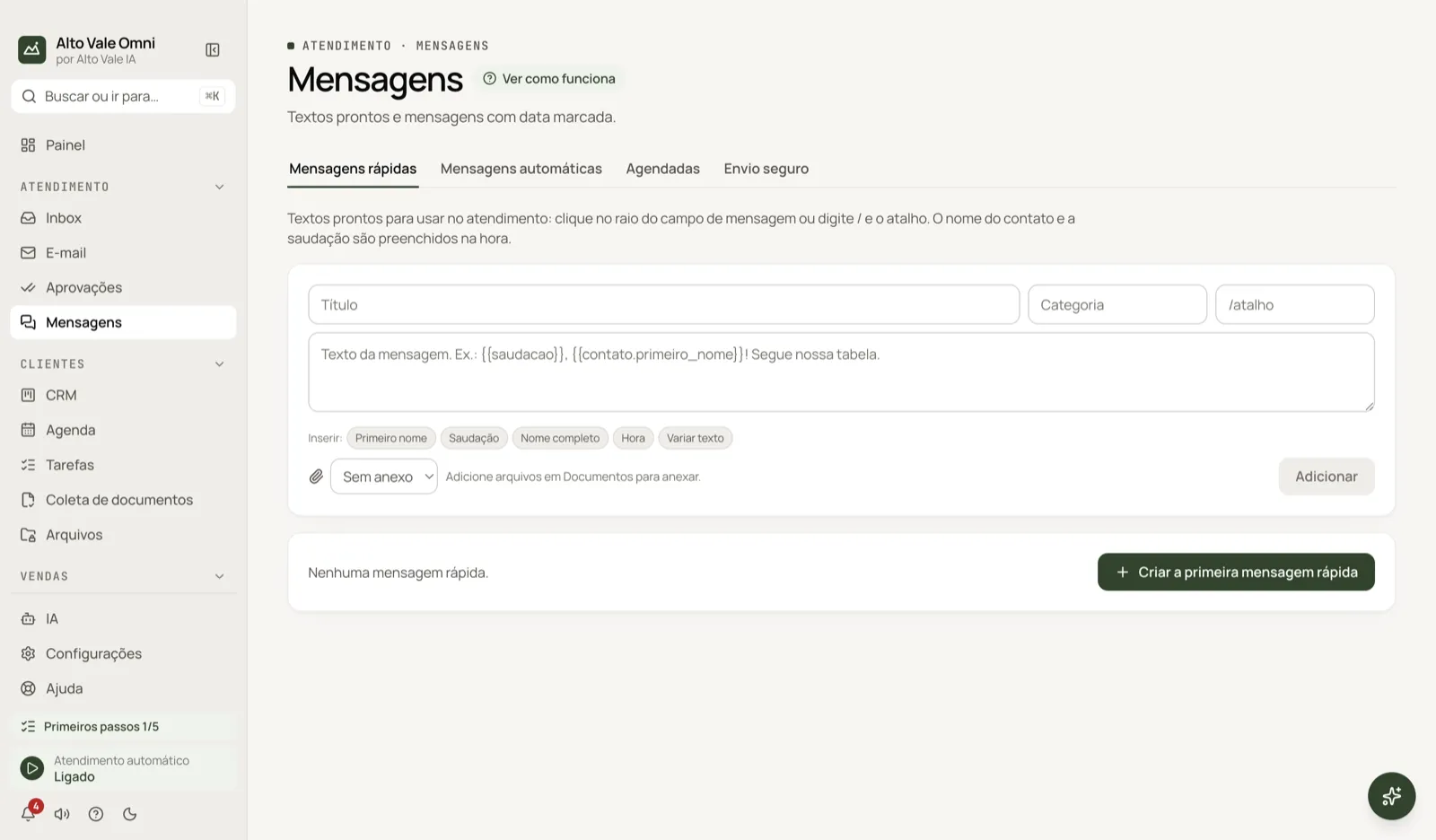
- In Quick messages, fill in Title, Category, /shortcut and the text.
- Insert variables with the First name, Greeting, Full name, Time and Vary text buttons.
- Click Add.
- In the Inbox, type / and the shortcut to use it.
All the actions on the screen
Quick messages
Example: title "Price list", shortcut /prices, text "{{saudacao}}, {{contato.primeiro_nome}}! Cleaning R$ 150, whitening R$ 890."
No attachment
Choose a file from Documents to go along, such as the price list PDF.
Create the first quick message
Shortcut in the empty state.
Automatic messages
Opening hours, an out-of-hours message, welcome and closing. Example: "We are closed; Marina Souza replies tomorrow at 8 am".
Scheduled
Everything scheduled in conversations, with filters, pause and cancel. Example: Ana Ribeiro's follow-up reminder.
Safe sending
Pick the Mode: Conservative (recommended for new numbers), Balanced, Custom or Off (as before). It limits sends per hour and per day, warms up new numbers and holds the excess in a queue. Anyone who replies "STOP" no longer receives messages. Replies to people who wrote to you are not held back.
Shortcuts
- / in an empty Inbox field opens quick messages.
Common problems
The message did not go out. It may be in the Safe sending queue; check the Scheduled tab and the mode you chose.
The {{chave_pix}} placeholder showed up in the text. Replace it with your own data before using it.
See also
Screen in the app: /messages · In the app, press F1 on this screen to open this guide.
Still have a question?
Talk to the Alto Vale IA team on WhatsApp. Tell us the app, the screen and what happened.