Calendar
Book appointments, confirm attendance, use the waiting list and see external calendars, with the AI booking through the chat.
What it is for
Calendar holds appointments, confirms attendance with customers on WhatsApp, offers freed slots to people on the waiting list and shows external calendars. The AI books, confirms and reschedules in the chat; you follow along here.
Before you start
- Set your working hours and services in Hours and reminders.
- For the AI to book, enable the calendar for the agent in Calendar › Hours and reminders › AI in the calendar.
Step by step
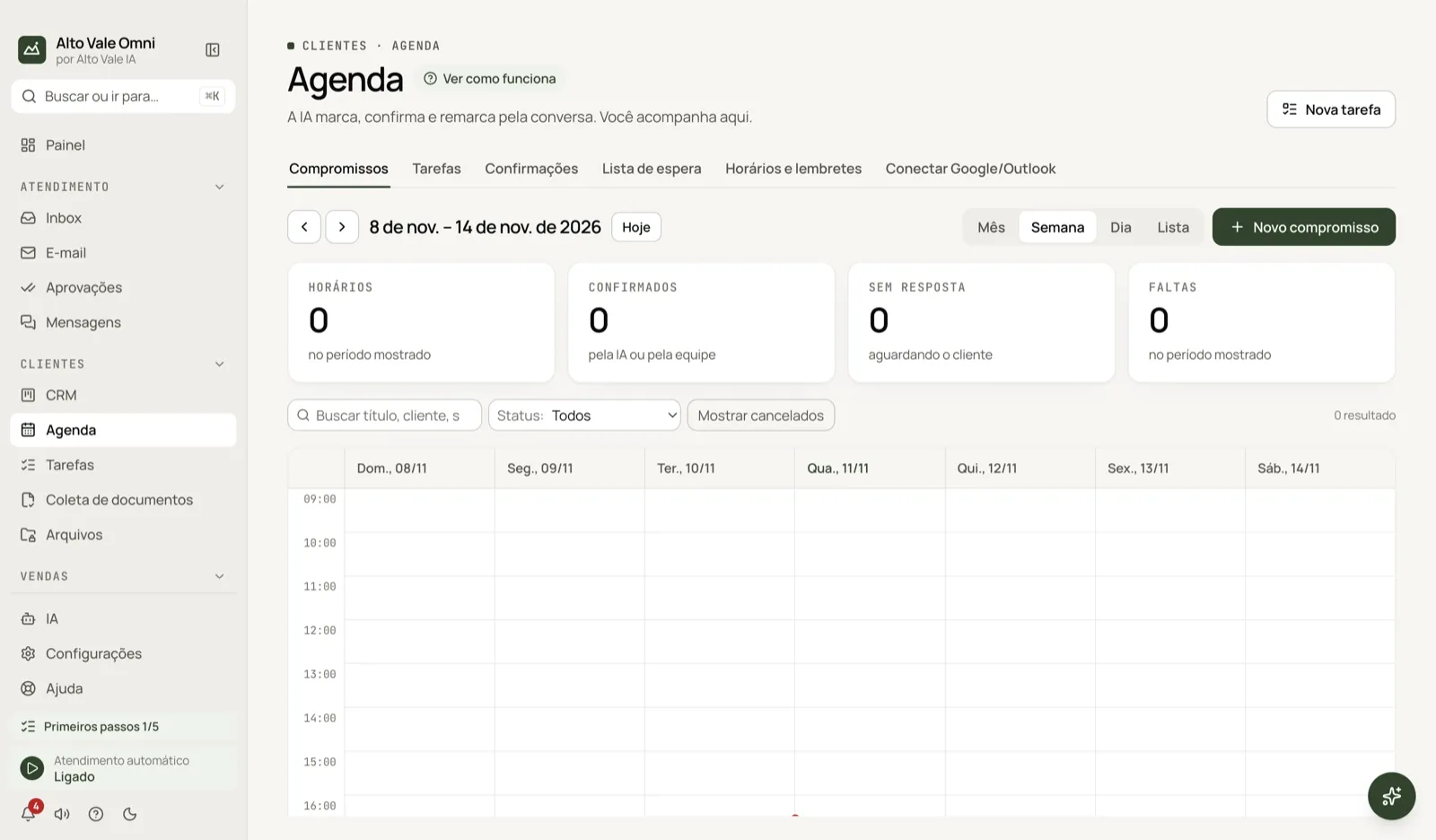
- Open Calendar in the Customers sidebar group.
- In Appointments, click New appointment.
- Pick the customer (Ana Ribeiro), the service (cleaning, 40 min), the date and a free time.
- Click Book. The reminder goes out by itself, if turned on.
All the actions on the screen
Month, Week, Day and List
These change the calendar view; the arrows and Today move through time. Example: Week to see Dr. Paula's schedule.
Top cards
Appointments, Confirmed, No reply and No-shows for the period shown.
Search, Status and Show cancelled
These filter what appears. Example: search "Carlos" with Status: Scheduled.
New appointment
Opens the form (title, customer, service, calendar, date, start, duration, location, notes). The free times on this day appear to click. If there is a conflict, the app warns you and lets you Save anyway. Inside an appointment: Send invite to customer, Download .ics, Open conversation, Cancel appointment and Delete.
New task
At the top of Calendar, creates a reminder task that does not belong to a conversation. Example: "Pay the resin supplier".
Tasks tab
Tasks with reminders: overdue, today and upcoming. See Tasks.
Confirmations tab
Shows the confirmation and no-show rates, who has not confirmed today and tomorrow, and past appointments. Use Ask for confirmation now or Ask again, and mark Attended or No-show. Example: Roberto Alves did not reply; Marina clicks Ask again. The customer answers 1 Confirm, 2 Reschedule or 3 Cancel.
Waiting list tab
Add to list someone who wants an earlier slot (service, dates, note). When a slot frees up, it is offered in order of arrival. Remove from list takes the person off. Example: Fernanda Costa wants a cleaning "mornings only".
Hours and reminders tab
Working hours, interval between slots, duration, buffer, services (cleaning 40 min, whitening 90 min), customer reminders, Appointment confirmation (Clinic, Salon and Consulting setups) and AI in the calendar, with the option to require your approval.
Connect Google/Outlook tab
Subscribe to a calendar by iCal link (read-only), connect via CalDAV (read and write) or create a New local calendar. Sync all refreshes; Export calendar (.ics) downloads the file. Outside events block slots here.
Shortcuts
- ⌘K opens the palette; ⌘J opens the assistant.
Common problems
The AI does not book. Enable the calendar for the agent in Hours and reminders.
The reminder did not go out. Check the connected channel and Safe sending; a personal contact only receives it if the option is on in their card. A Google event cannot be edited. Imported events are read-only; change them in the source calendar.
See also
Screen in the app: /agenda · In the app, press F1 on this screen to open this guide.
Still have a question?
Talk to the Alto Vale IA team on WhatsApp. Tell us the app, the screen and what happened.