Document collection
Ask for IDs, proofs and reports on WhatsApp, let the app check each photo on your computer and approve what arrived.
What it is for
Requests and checks documents from customers on WhatsApp and Instagram. The app reads each photo or PDF on your own computer, sees whether it is legible, cropped or expired, asks for a resend with the reason and leaves the final approval to you.
Before you start
- Have a channel connected.
- Know which documents to ask for: the app has ready-made templates by segment (General, Health, Real estate, Automotive, Accounting, Schools).
Step by step
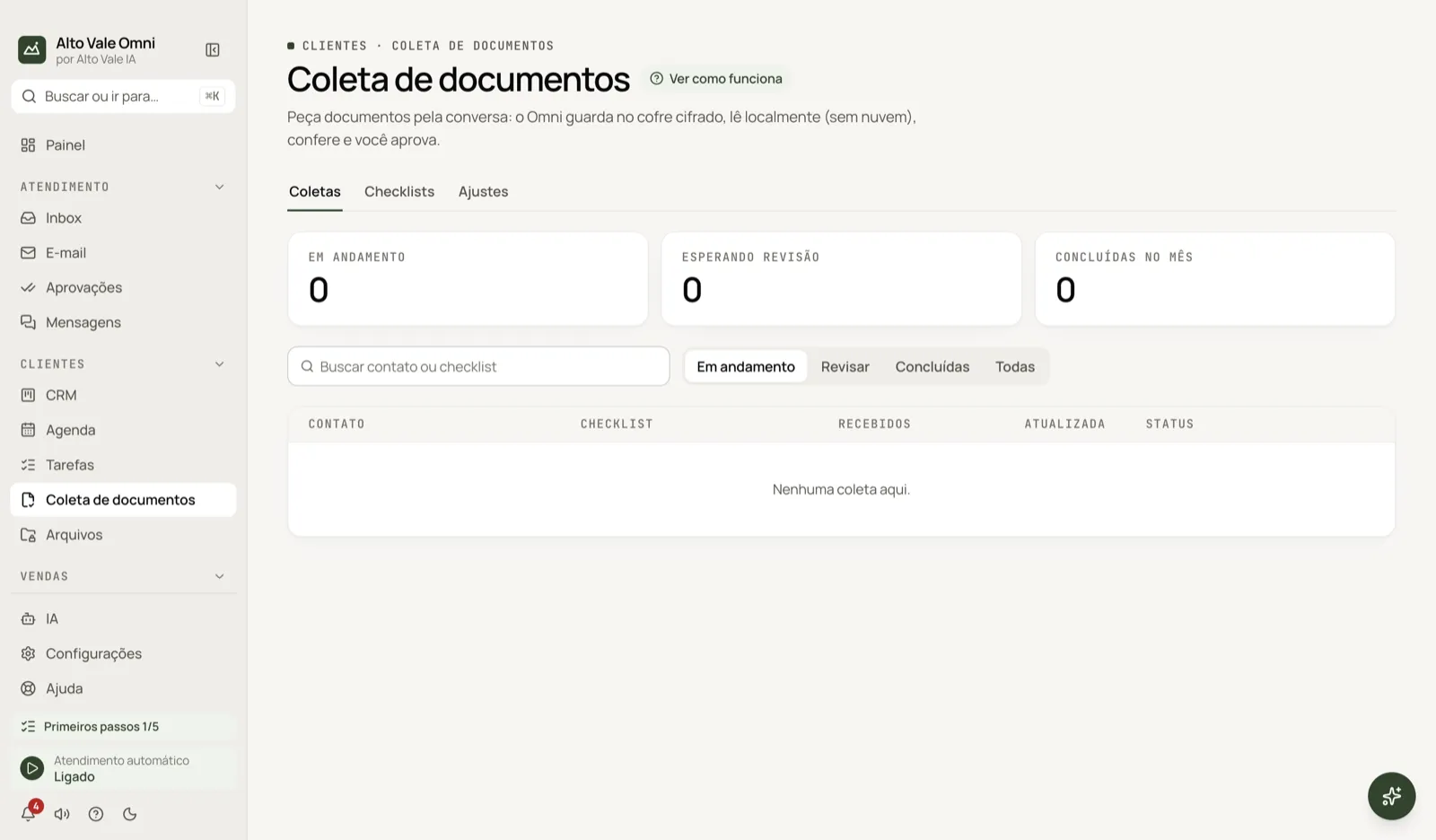
- Open Document collection and go to Checklists.
- Click New checklist (or Use this template) and tick the required documents.
- In Ana Ribeiro's chat, use More › Request documents and send the list.
- When she sends the photos, open Collections, review each item and Approve or Reject.
All the actions on the screen
Collections tab
Lists collections with search by contact or checklist and the filters In progress, Review, Completed and All. The cards on top show how many are in progress, how many documents await review and those completed this month.
Reviewing a collection
Open the collection to see each document. Example: Ana sent her proof of address.
- Approve accepts the item; Undo approval reverts it.
- Reject asks for a reason, which goes to the customer ("photo cropped, please resend").
- Move to… puts a file in the right item.
- The app flags problems such as blurry, cropped, expired or a CPF that does not check out.
Remind customer
Resends the request to whoever has not sent everything. Example: Carlos Menezes has not sent his ID yet.
Save to contact
Saves the checked data (name, CPF, address) into the contact fields.
Export ZIP
Downloads all files of the collection at once.
Cancel collection
Ends the request; received files are kept until the checklist retention period.
Checklists tab
Your checklists and the Templates by segment. When creating or editing: name, process (for example "your appointment"), each document (type, both sides, max age in days, required), remind after X hours, expiry, Keep for (days), tag on completion and AI can request these documents.
Settings tab
- Read documents on this computer (local OCR).
- Reply to the customer on each file.
- AI can request documents (it never sees the content).
- Allow cloud AI to read documents: off by default.
Shortcuts
- ⌘K opens the palette; ⌘J opens the assistant.
Common problems
The app rejects a good photo. Check the reason on the item; if it is only a visual check ("check manually"), approve it by hand. The files are gone. They are erased at the end of the checklist's Keep for (days).
I cannot find "Request documents". It is in the More menu of the conversation in the Inbox.
See also
Screen in the app: /documents · In the app, press F1 on this screen to open this guide.
Still have a question?
Talk to the Alto Vale IA team on WhatsApp. Tell us the app, the screen and what happened.