Orders
Take orders on WhatsApp with the Catalog menu, notify the customer at each step and follow your delivery apps.
What it is for
Takes orders on WhatsApp using the Catalog menu, guides the customer (items, delivery or pickup, neighborhood, payment), notifies each status change and prints the ticket. It also opens the delivery-app portals inside the app. The examples use a pizzeria, since delivery is a different segment.
Before you start
- Register products with prices in the Catalog; only they go on the menu.
- Have WhatsApp connected.
Step by step
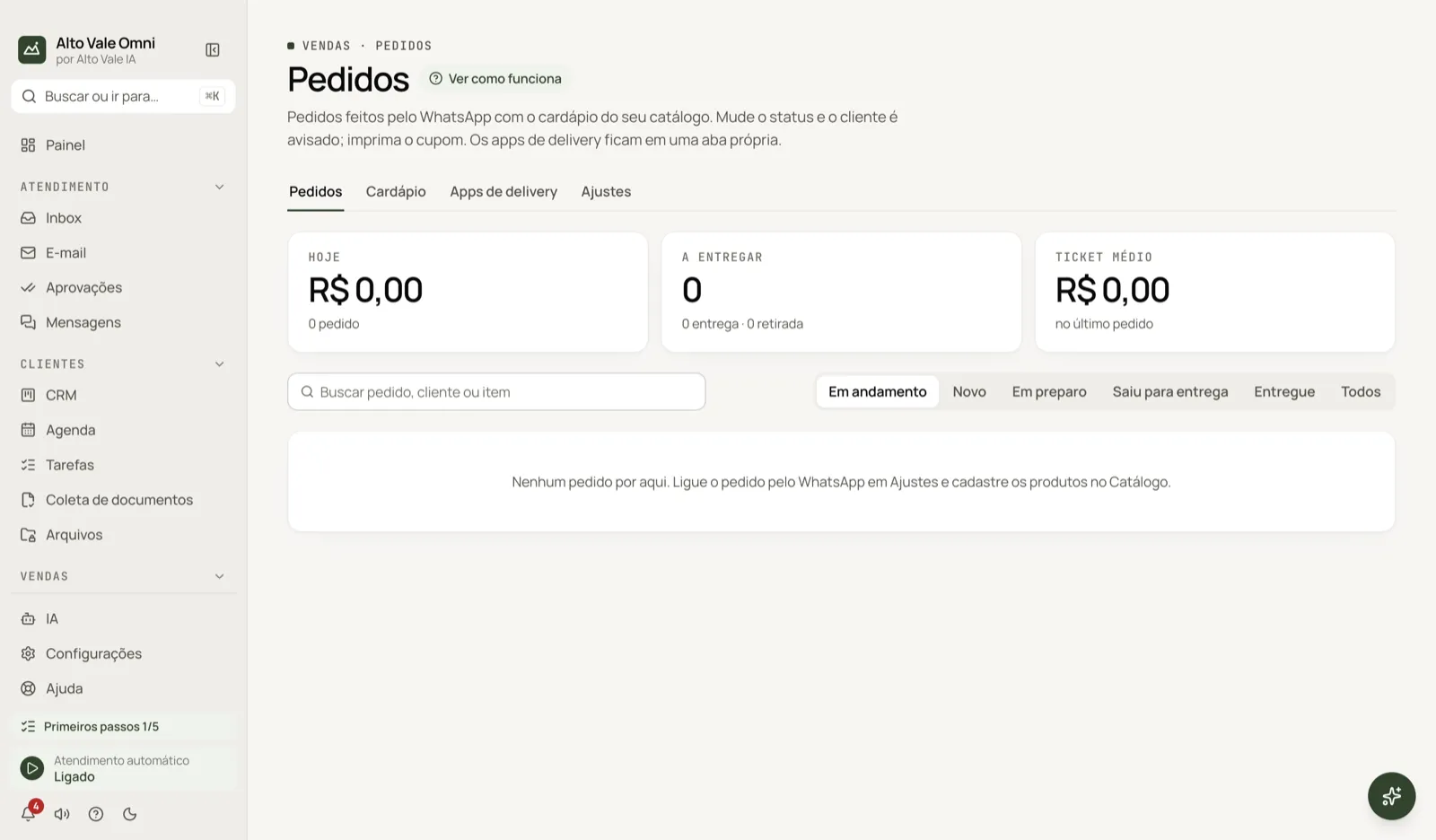
- Open Orders › Settings and turn on Take orders on WhatsApp.
- Fill in delivery and pickup, Delivery fee by neighborhood, minimum order, times and Pix key shown to the customer.
- The customer writes "order" or "menu"; the app guides the rest.
- In Orders, move the order status forward; the customer gets the notice.
All the actions on the screen
Top cards
Today (how many orders), To deliver (delivery and pickup) and Average ticket.
Orders tab
A list with number, customer, items, total and status; search by order, customer or item and filter In progress or All. Example: order #12 from Ana Ribeiro, 2 pizzas, pickup, Pix.
- Mark: (next status) moves the order forward (confirmed, preparing, out for delivery, delivered); the customer gets the message.
- Print ticket sends it to the printer (80 mm).
- Open the conversation goes to the customer's chat.
- Cancel order notifies the customer, if turned on in Settings.
Menu tab
Shows what is On the menu and what is out; items without price or stock do not appear. Save each product's link in the delivery apps for the AI to send. Open the Catalog takes you to edit name, photo and price.
Delivery apps tab
Open the portal of iFood, Rappi, aiqfome, Anota AI, Goomer, Delivery Much, 99Food, Keeta or another. Sign in to your account; the app never types your password. Alert new orders only reads the page to sound an alert; accepting and dispatching stay on the portal. Sign out erases the access from this computer.
Settings tab
Take orders on WhatsApp, Delivery, Pickup, automatic printing, sound alert, words that start an order, times, Delivery fee by neighborhood (e.g. Downtown R$ 5.00), payment (Pix, cash, card on delivery) and Customer notices.
Shortcuts
- ⌘K opens the palette; ⌘J opens the assistant.
Common problems
The menu is empty. Register products with price and stock in the Catalog. The delivery-app alert failed. There is no official integration; if the portal changes, the alert may stop. Check the portal. Neighborhood not accepted. A neighborhood outside the list gets no delivery; add it in Delivery fee by neighborhood.
See also
Screen in the app: /orders · In the app, press F1 on this screen to open this guide.
Still have a question?
Talk to the Alto Vale IA team on WhatsApp. Tell us the app, the screen and what happened.