Import statement
Bring in bank entries (CSV, OFX or PDF card bill) and review before saving.
What it is for
Reads the bank file, suggests each line's category and saves only after your review.
Before you start
- Download the statement from your bank (OFX is the most reliable) or the card bill in PDF.
Step by step
- Drag the file or click Choose file.
- Check the target year and month.
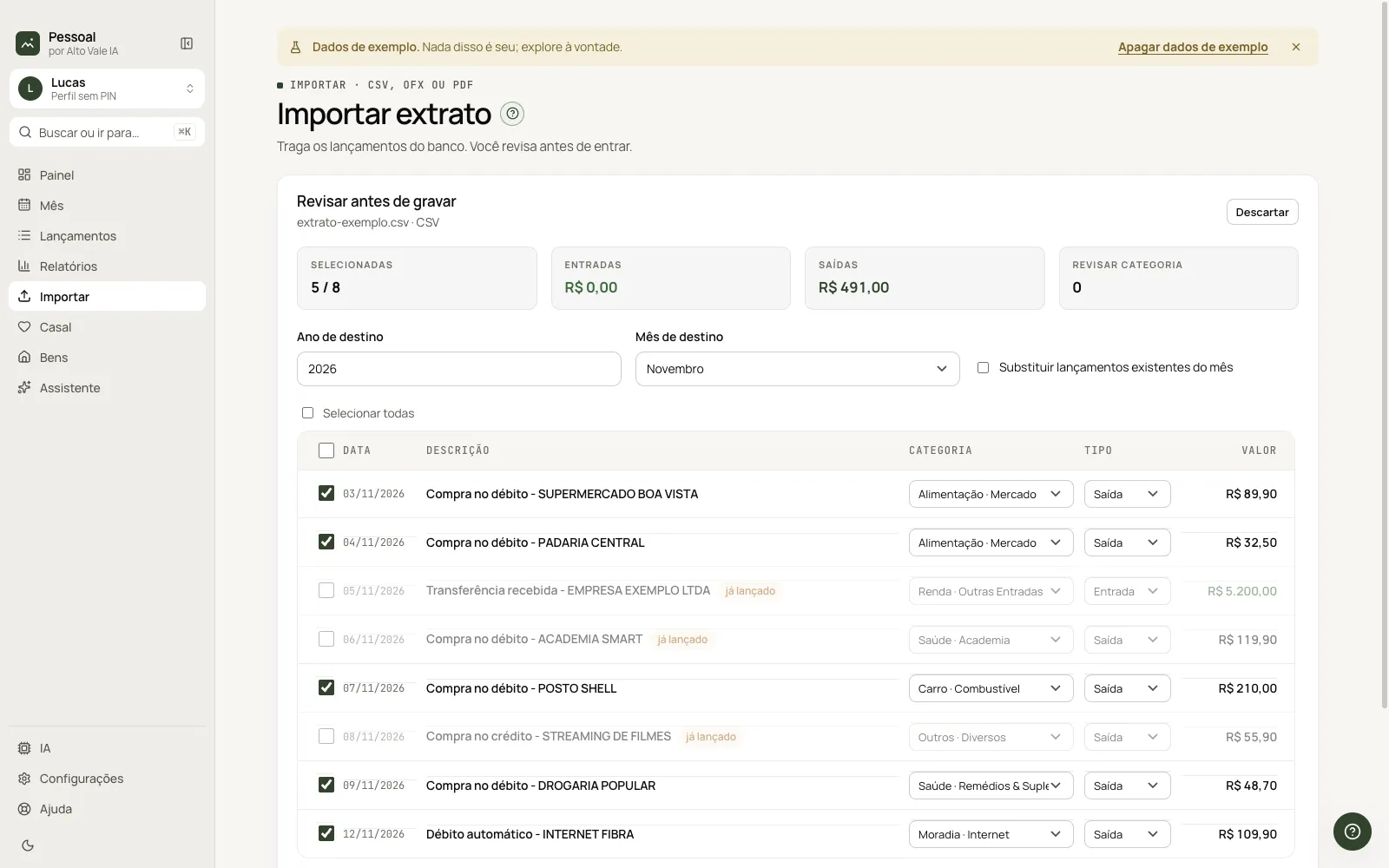
- Review each line's category and type; untick what you don't want.
- Click Save N entries.
Every action on this screen
Drag the file
Example: "extrato-nubank-nov.csv" with Date, Description and Amount.
Review
Table with date, description, category, type and amount. Lines already logged come marked "already logged" and unticked.
Replace the month's entries
Swaps what is in the month for the file.
Select all / discard
Ticks or unticks all; Discard returns to the start.
How to export from the bank
The block at the bottom explains the steps.
Shortcuts
- ⌘K → "Import".
Common problems
Layout not recognized. Use the AI bundle or export as OFX.
Duplicates. Already-logged lines come unticked.
See also
Screen in the app: /financas/importar · In the app, press F1 on this screen to open this guide.
Still have a question?
Talk to the Alto Vale IA team on WhatsApp. Tell us the app, the screen and what happened.