Month
Log the month's income and expenses, check everything and close the month so it becomes history.
What it is for
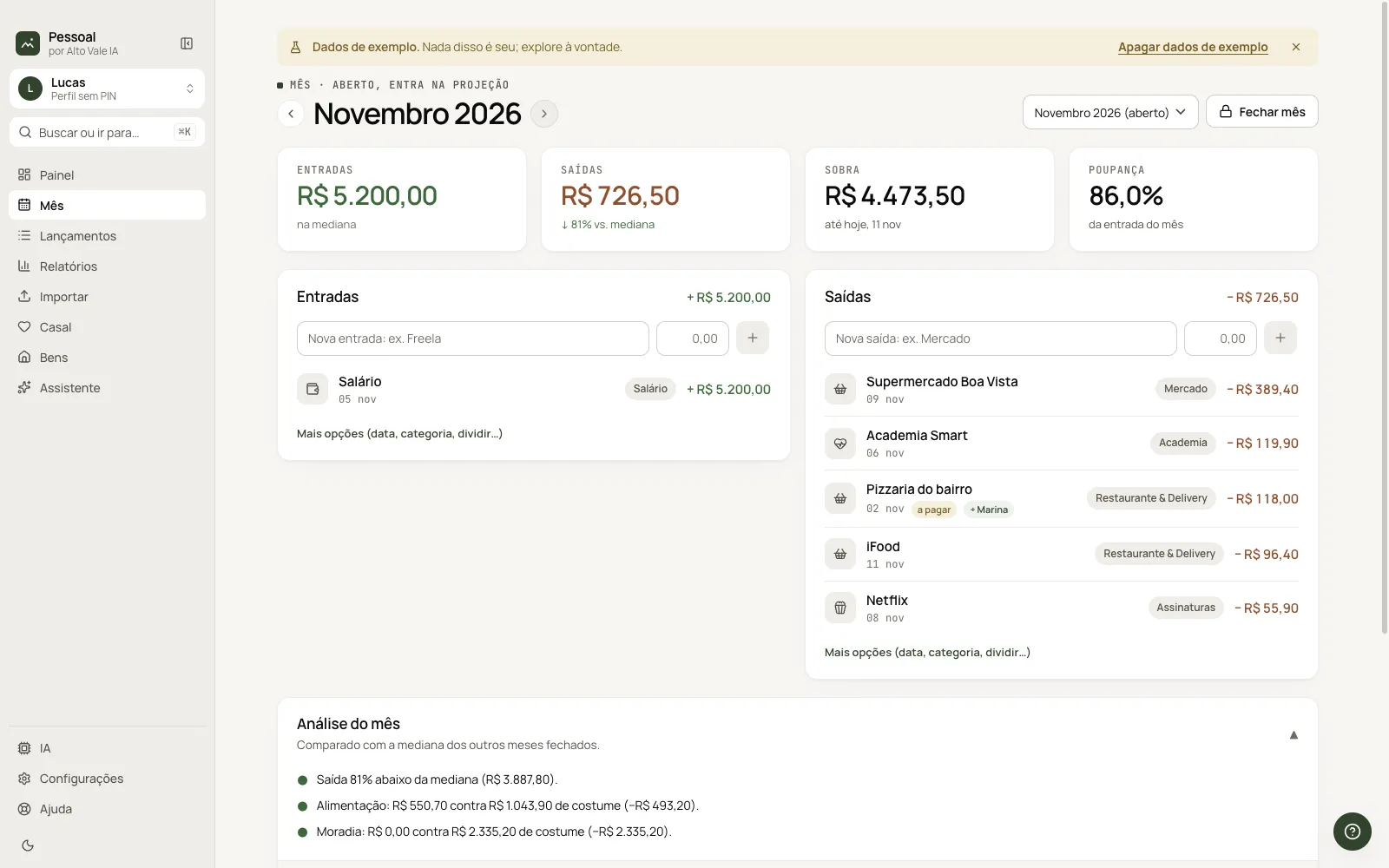
Month is where you record and check a month's entries. Once closed, it moves to the Past tab on the Dashboard.
Before you start
- Have the month created (the Dashboard creates the current one when you add).
- Know each expense's category: the app suggests it from the description.
Step by step
- Type description and amount in the Expenses or Income field and click +.
- Tick ✓ what is already paid.
- Check the Month analysis against the median of closed months.
- Click Close month.
Every action on this screen
Quick entry
Under Expenses: "Padaria Trigo Bom" and 18.50, click +. The category comes from the description (Groceries).
More options
Opens the full form: date, category, split with Marina, overtime.
✓ Paid, ♥ split, ✎ edit, × delete
Buttons appear on hover. ♥ splits the expense with the person in Couple. Right-click has the same actions plus "Make recurring".
Close and reopen
Close month sends it to Past; Reopen returns it to the projection.
Switch month
The ‹ › arrows and the picker go to another month; the picker also creates new months.
Month analysis
Table with This month, Median, Comparison and Change by group. Example: Groceries R$ 485.80 against R$ 953.70 (−49%).
Shortcuts
- Enter in the amount field adds.
- ⌘K: find another month.
Common problems
The amount is not accepted. Use comma or dot: 312.40.
The suggested category is wrong. Change it on the line (✎) or teach it in Settings › Categories and rules.
See also
Screen in the app: /financas/mes · In the app, press F1 on this screen to open this guide.
Still have a question?
Talk to the Alto Vale IA team on WhatsApp. Tell us the app, the screen and what happened.