Assistant
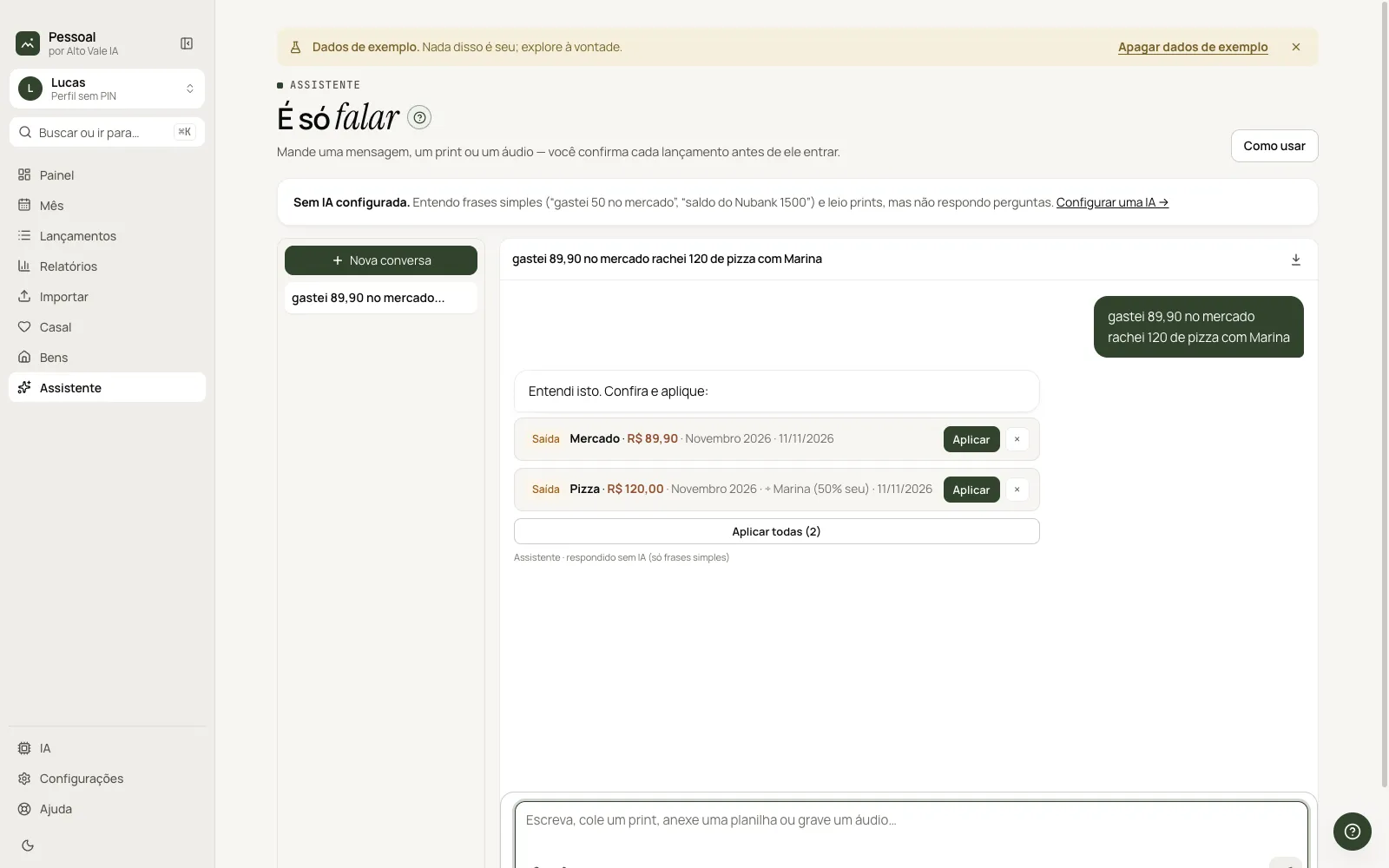
Type, paste a screenshot or record audio: the Assistant understands and proposes entries for you to confirm.
What it is for
Logs by conversation. Nothing goes in without your confirmation.
Before you start
- Optional: an AI in the AI page (without it, simple sentences and OCR still work).
Step by step
- Type "spent 42 at the market today".
- Review what the Assistant understood.
- Apply the entries with one click.
Every action on this screen
Message
"spent 45.90 at the market and 120 on gas" becomes two entries.
Screenshots and documents
Paste (Ctrl/⌘+V) a screenshot, attach a spreadsheet, statement or PDF.
Audio
Record and the app transcribes.
Conversations
The list keeps histories; New conversation restarts; the icon exports.
Mark as paid, fix or delete what already exists
Ask in plain language: "paid the Tiguan installment", "the November 9 grocery was 389.40", "delete the duplicate Netflix". The Assistant finds the entry in your data (it sees what is paid and what is still due) and shows a Paid, Fix or Delete card for you to apply. Nothing changes without your click, and Undo restores the entry as it was. If several look alike, it asks which.
Questions
With AI: "how much did I spend on iFood this month?".
Shortcuts
- Enter sends; Shift+Enter breaks the line.
Common problems
No AI configured. Use simple sentences or set up under AI.
See also
Screen in the app: /assistente · In the app, press F1 on this screen to open this guide.
Still have a question?
Talk to the Alto Vale IA team on WhatsApp. Tell us the app, the screen and what happened.