Publish and schedule
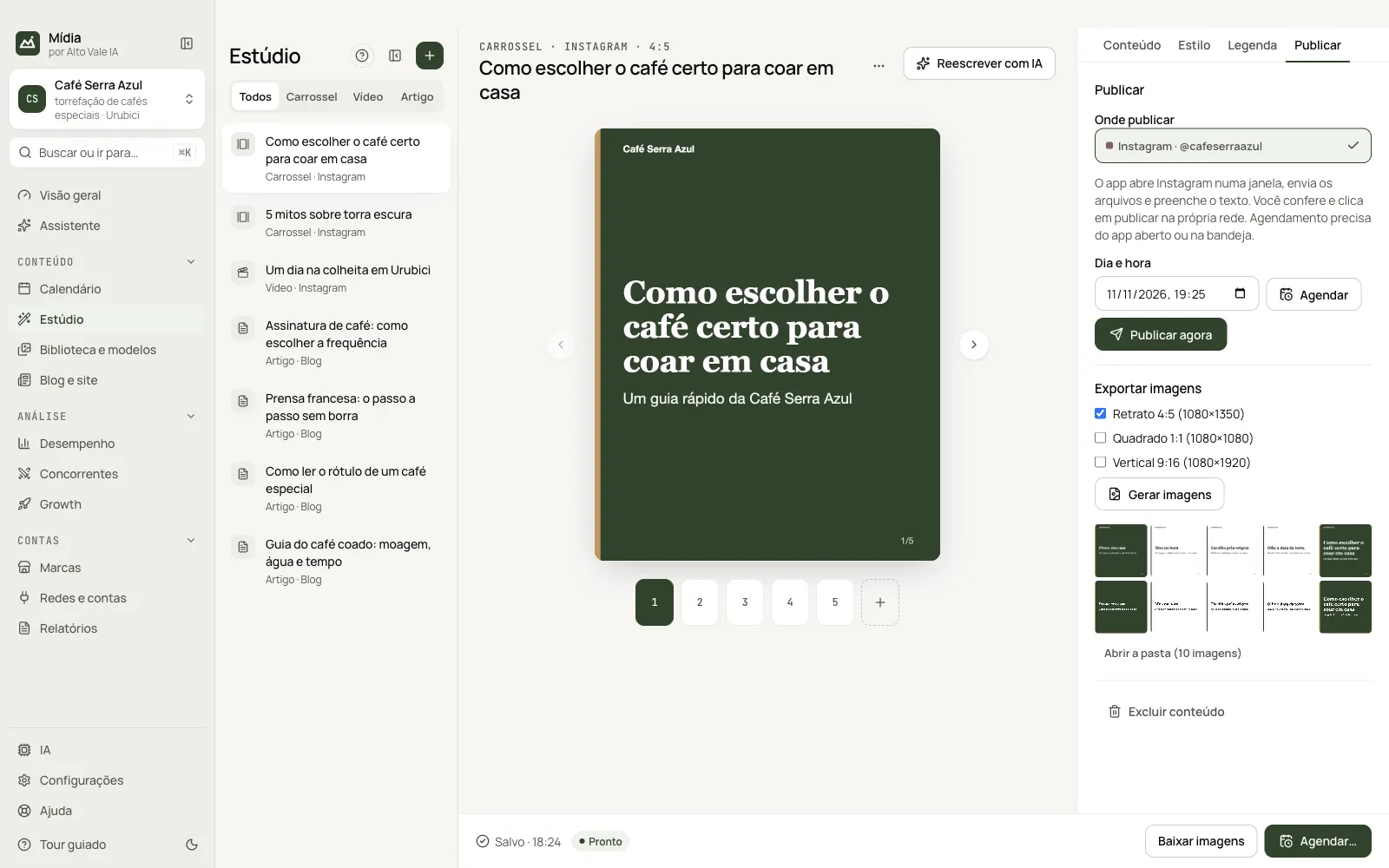
Publish now or schedule; the app prepares the network in a window and you click publish.
What it is for
Put the content on the networks on the right day and time, without losing control: in assisted mode, you are the one who clicks publish.
Before you start
The network must be connected in Redes e contas (Networks & accounts) and the content reviewed in the Studio.
Step by step
In the Estúdio (Studio), open the content and go to the Publicar (Publish) tab (or click Agendar… (Schedule…) in the bottom bar). Choose Publicar agora (Publish now) or a day and time in Agendar (Schedule). Posts appear in the month view of the Calendário (Calendar), and the full queue is in Calendário → Lista (Calendar → List).
How it works
At the scheduled time, the app opens the network's website in a window, uploads the files and fills in the text. You are the one who clicks publish, on the network itself. Afterwards, click Já publiquei (I already published) in Calendário → Lista.
Before entering the queue, the app checks the content's review, whether the account is connected and whether the network accepts the files. Carousels and posts generate the images on their own; video needs to be in the Library.
| Network | Account used | Accepted in the browser |
|---|---|---|
| Images and video, up to 20 files | ||
| Meta Business Suite | Images and video, up to 10 files | |
| Images and video | ||
| TikTok | TikTok Studio | Video only |
| YouTube | YouTube Studio | Video only |
What each status means
- Falta o seu clique (Your click is missing): everything is filled in in the window. Check it and publish.
- Terminar à mão (Finish by hand): a step failed, usually because the network's page changed. Nothing was published. The caption is already on the clipboard: just paste it in the window and finish.
- Conferir na rede (Check on the network): automatic mode only. The app clicked publish and the network did not confirm. Check whether the post went out before trying again, to avoid duplicating. The app never retries on its own.
- Passou da hora (Past the time): the app was closed at the scheduled time. Publish now or reschedule (in the List, or by dragging the post to another day in the month). After 30 minutes it does not publish without asking.
App open at the scheduled time
Scheduling only works with the app open or in the tray, and with the computer on. When you close the window, the app stays in the tray. To really quit, use Sair (Quit) on the tray icon. In Configurações → Agendamento (Settings → Scheduling) you change this and can abrir o app ao iniciar o computador (open the app when the computer starts). Close to the scheduled time, the app keeps the computer from sleeping.
Automatic publishing
In Redes e contas (Networks & accounts), each account can turn on publishing without the final click, with a limit of 10 posts per day. It comes turned off. Publishing through automation may go against the network's terms and lead to account restrictions, so turn it on only if you accept that risk.
All the actions on the screen
Dia e hora + Agendar (Day and time + Schedule)
In the Studio's Publicar tab. Example: Thursday, 18:00 for "Moagem certa para cada método".
Publicar agora (Publish now)
Opens the network and fills everything in; you check and publish.
Já publiquei (I already published)
In the Calendar, after publishing by hand, closes the content's cycle.
Tentar de novo / Reagendar / Cancelar publicação (Try again / Reschedule / Cancel publishing)
In the item's menu: redoes a step that failed (check on the network first to avoid duplicating), changes the date and time or removes it from the queue.
Publicação automática (Automatic publishing)
In Redes e contas → Gerenciar (Networks & accounts → Manage), turns on the automatic final click (up to 10 posts per day). It comes turned off.
Shortcuts
The item's menu (right-click or "⋯") has all the queue's actions.
Common problems
"Terminar à mão" (Finish by hand). The network's page changed; the caption is already copied, paste it and finish.
"Passou da hora" (Past the time). The app was closed: publish now or reschedule.
See also
Screen in the app: /studio · In the app, press F1 on this screen to open this guide.
Still have a question?
Talk to the Alto Vale IA team on WhatsApp. Tell us the app, the screen and what happened.