Studio
Carousels, posts, videos and articles with AI, in three columns: list, preview and a tabbed panel.
What it is for
Create the content: the AI writes slides, caption and hashtags in the brand's tone and you adjust everything.
Before you start
Connect an AI and fill in the Brand Kit.
Step by step
Create content
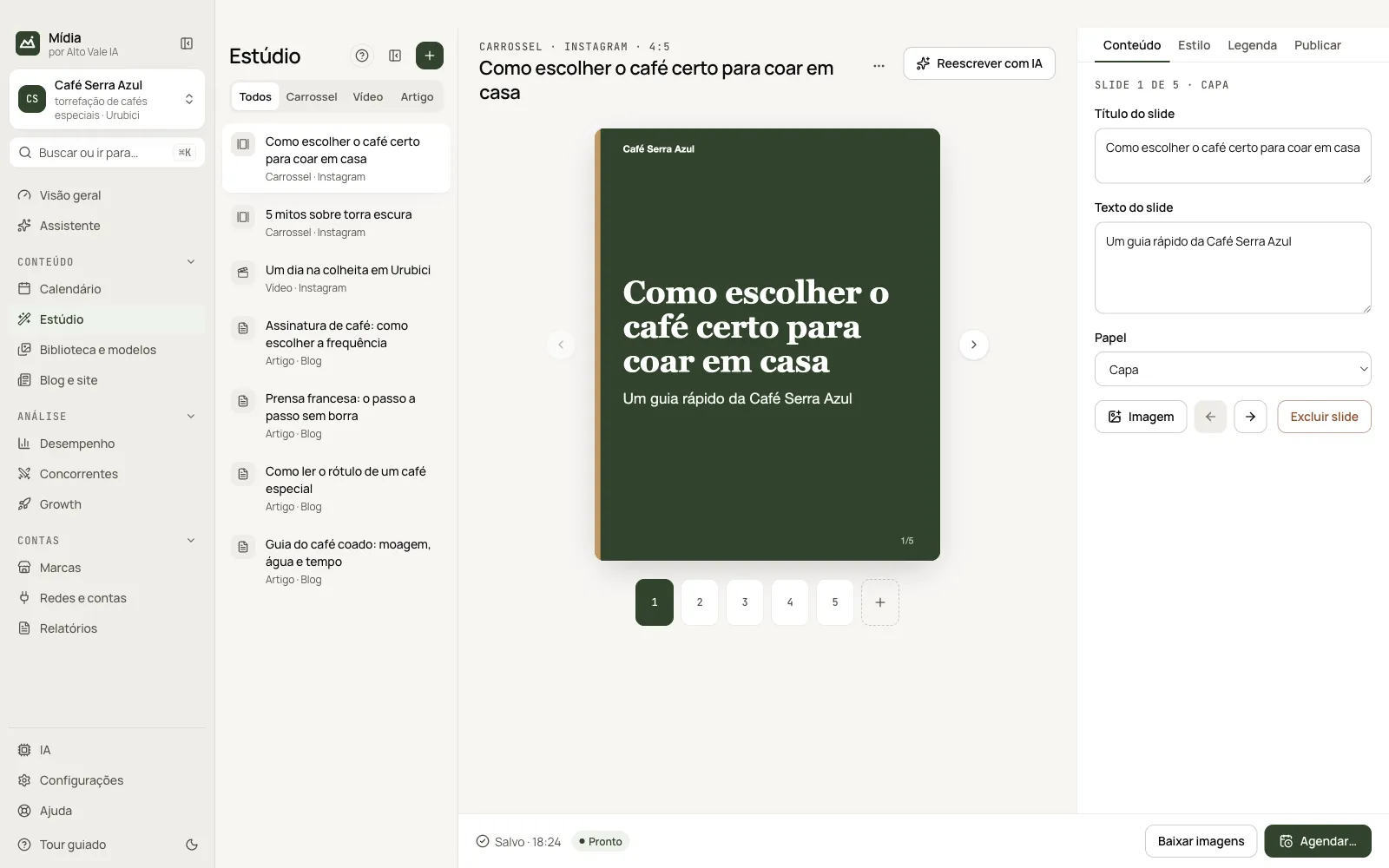
The Estúdio (Studio) has three columns: the content list (filter by Carrossel, Vídeo or Artigo), the slide preview in the center and a panel with the tabs Conteúdo (Content), Estilo (Style), Legenda (Caption) and Publicar (Publish). The bottom bar shows whether it is saved and has Baixar imagens (Download images) and Agendar… (Schedule…).
Click the + on the list (Criar com IA, Create with AI), say the topic and choose the network and the format. The AI uses the Brand Kit and the posts that engaged the most to write the slides, the caption and the hashtags. For video, it writes the script; for an article, the full text.
You can also start from an idea in the Calendário (Calendar, wand button) or from a template in Biblioteca e modelos → Modelos (Library & templates → Templates).
Everything is editable and saves on its own. Each slide's text is in Conteúdo; the template, size, network and status are in Estilo. To ask the AI for an adjustment, use Reescrever com IA (Rewrite with AI) or write in the Legenda tab and click Ajustar (Adjust): "shorter", "lighter tone".
Review
Before publishing, the Revisão (Review), in the Legenda tab, checks for the Brand Kit's forbidden words, the network's limits on caption, hashtags and slides, empty slides or slides with too much text, and the brand's call to action.
Export
In the Publicar tab, under Exportar imagens (Export images), tick the sizes and click Gerar imagens (Generate images) (or use Baixar imagens in the bottom bar, with the current size): 1080×1350, 1080×1080 or 1080×1920. The PNGs go to the Library. Exporting again replaces the previous ones for that content.
The Brand Kit fonts come from Google Fonts. Without internet, or with a name that does not exist there, the slide comes out in the system font.
All the actions on the screen
List (Todos, Carrossel, Vídeo, Artigo)
Filters the content. The + creates with AI; the list icon collapses the column. Example: filter "Artigo" to find the blog post.
Criar com IA (Create with AI)
Window with topic, network, format and template. Example: "How to choose the right coffee for brewing at home", Instagram, Carousel.
Slide preview and thumbnails
The arrows and numbers switch slides; the dashed + adds one.
Reescrever com IA (Rewrite with AI)
Takes you to the Legenda tab to ask for an adjustment. Example: "shorter".
Conteúdo tab (Content)
Slide title and text, role (Capa, Conteúdo, Chamada: Cover, Content, Call), Imagem (Image), order arrows and Excluir slide (Delete slide).
Estilo tab (Style)
Title, network, status, template and Formato (Format) 4:5, 1:1 or 9:16.
Legenda tab (Caption)
Caption with counter, hashtags as chips (type and Enter), Ajustar (Adjust) and the Revisão antes de publicar (Review before publishing).
Publicar tab (Publish)
Onde publicar (Where to publish), Dia e hora (Day and time), Agendar (Schedule), Publicar agora (Publish now), Exportar imagens (Export images) and Excluir conteúdo (Delete content).
Bottom bar
Shows "Salvo" (Saved), the status and Baixar imagens and Agendar….
Title "⋯" menu
Copy title, copy caption and delete.
Shortcuts
Right-clicking a content item in the list opens Open, Copy and Delete.
Common problems
The review flags a word. It is a forbidden word from the Brand Kit: change it in the slide or the caption.
See also
Screen in the app: /studio · In the app, press F1 on this screen to open this guide.
Still have a question?
Talk to the Alto Vale IA team on WhatsApp. Tell us the app, the screen and what happened.