Brands and Brand Kit
Each brand's registration, Brand Kit, content sources and each brand's key.
What it is for
Tell the AI who the brand is: name, niche, tone of voice, pillars, colors, fonts and where to take the facts from.
Before you start
Have the brand's website at hand: the app reads the website to fill in the registration.
Step by step
Brand Kit
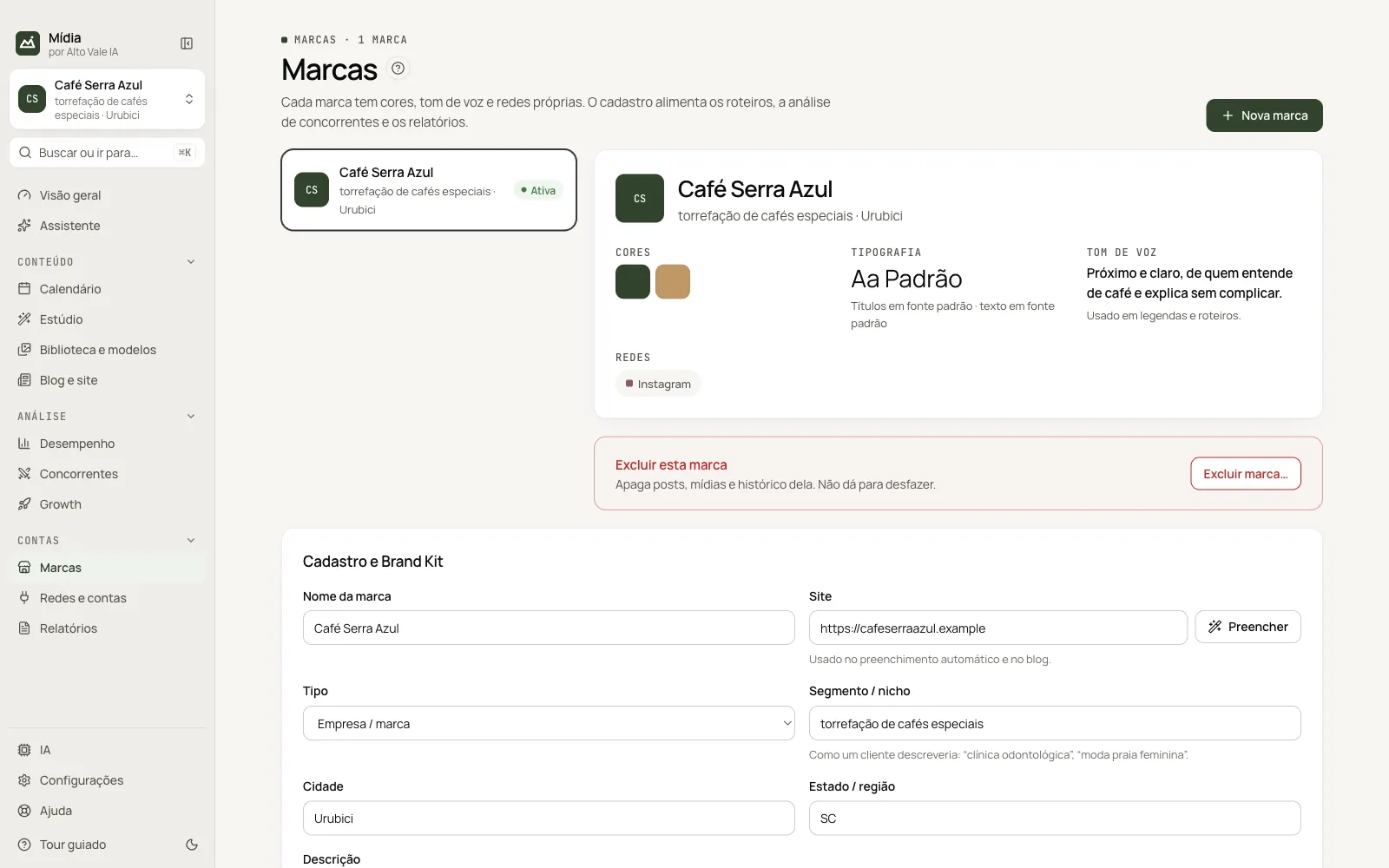
In Marcas (Brands), on the Cadastro e Brand Kit (Registration and Brand Kit) card, lives the Brand Kit: the identity the AI uses in everything it generates for the brand.
- Tom de voz (Tone of voice): how the brand speaks ("welcoming and clear, no jargon; addresses the customer as você").
- Pilares de conteúdo (Content pillars): the recurring themes. The AI's plan balances posts among them.
- Default Chamada para ação (Call to action) and hashtags.
- Nunca dizer (Never say): forbidden words and promises. The AI never uses them.
- Cores, fontes e logo (Colors, fonts and logo): used in the Studio's artwork. The first color is the main one.
Preencher (Fill in, next to the website) reads the brand's website:
- From the website: the theme color and the most used colors in the CSS, the heading font and the body font, and the logo.
- From the AI: the tone of voice, the pillars, the hashtags, the call to action, the audience and the competitors.
What you have already filled in is not erased. Review and click Salvar (Save).
Competitors
In the registration, one per line: Name | site.com.br | @instagram (website and @ are optional). During initial setup, the AI suggests real competitors based on the niche and the region, and you tick the ones that make sense. Reading the profiles and the comparison live in Competitors.
Content sources
In Marcas (Brands), the Fontes de conteúdo (Content sources) card holds the pages the AI takes the brand's facts from: the company website, the online store, the blog or the catalog/menu (up to 10 per brand). When you add one, the app reads the pages (up to 30 in a store), finds the products with a price stated on the page and asks the AI for a summary with offers, differentiators, prices, promotions and frequently asked questions.
This summary goes into everything the AI creates: Studio, Calendar, Assistant and suggestions. Open the source to see the products found, write notes ("focus on new releases") or fix the summary by hand. Ler (Read) redoes the reading when the website changes. Websites built only with JavaScript may not return text; in that case, write the summary yourself.
All the actions on the screen
Nova marca (New brand)
Opens an empty registration. Example: "Padaria Trigo Bom", niche artisanal bakery, city Rio do Sul.
Brand list
Click a brand to make it the active one; the badge shows Ativa (Active), Pronta (Ready) or Sem chave (No key).
Preencher (Fill in, next to the website)
Reads the website and completes segment, audience, networks and Brand Kit. What you have already written is not erased.
Brand Kit
Tone of voice, pillars, hashtags, call to action, forbidden words, colors, fonts and logo.
Fontes de conteúdo (Content sources)
Add a website, store, blog or catalog; Ler (Read) redoes the reading when the website changes.
Excluir marca… (Delete brand…)
Deletes posts, media and history. It cannot be undone.
Chaves das marcas (Brand keys)
With more than one brand, paste each one's key and Ativar chave (Activate key) (see Key per brand).
Shortcuts
⌘K → "Nova marca" opens the registration from any screen.
Common problems
"Sem chave" (No key). The brand needs its own altovaleia key.
See also
Screen in the app: /brands · In the app, press F1 on this screen to open this guide.
Still have a question?
Talk to the Alto Vale IA team on WhatsApp. Tell us the app, the screen and what happened.