Full analysis
From scan to ready prompt, in four steps.
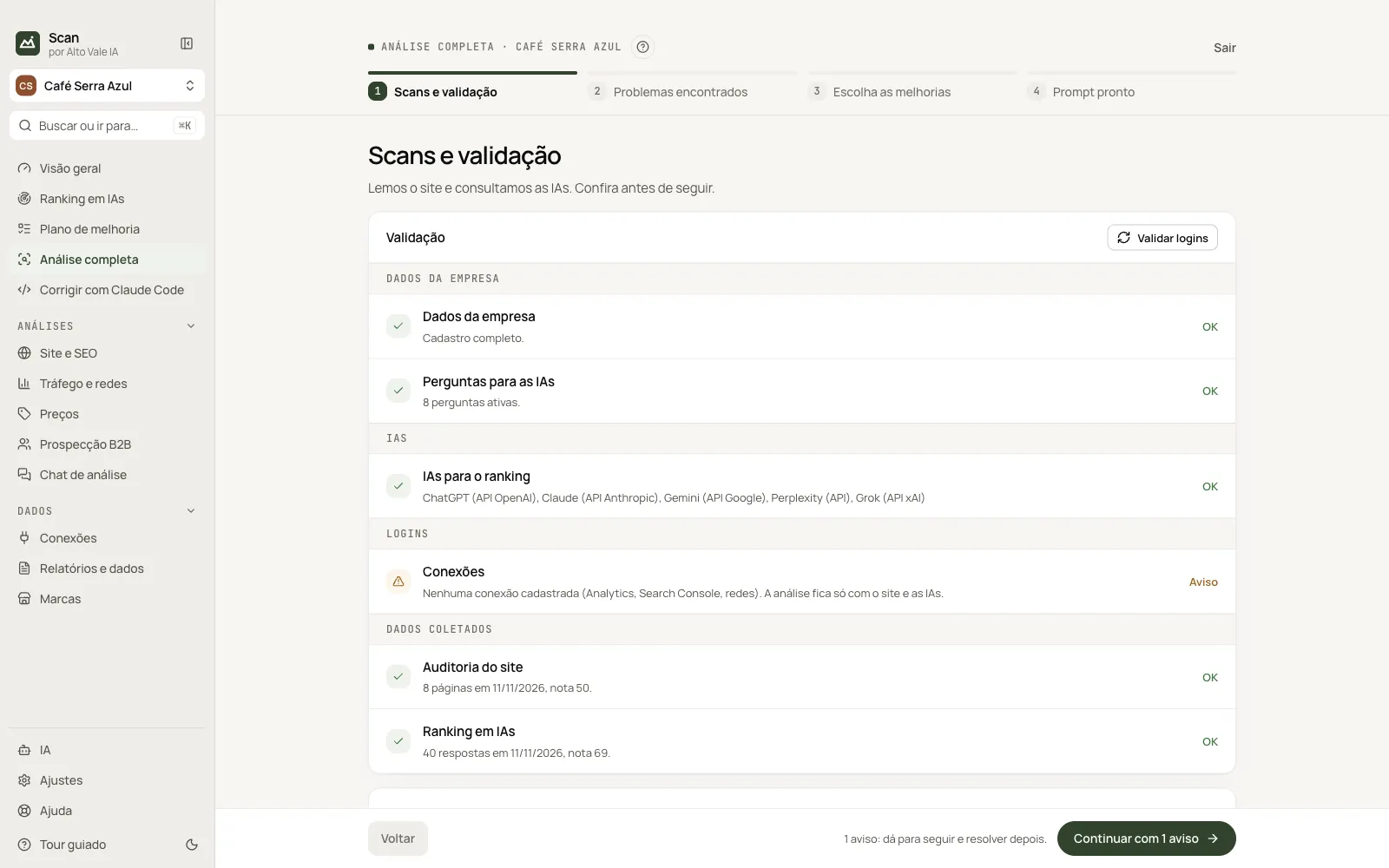
What it is for
Runs the analyses, lists the problems, lets you choose improvements and builds a step-by-step prompt for Claude Code.
Before you start
- A brand with a website.
- At least one AI set up.
Step by step
- Scans and validation: check the warnings and click Run scans.
- Problems found: tick what goes in (e.g. 12 of 14).
- Choose improvements: tick ideas and ready texts.
- Prompt ready: copy or Open in Claude Code.
Every action on this screen
Validate logins
Checks registration, AIs, logins and collected data. Example: "Connections: none connected" shows as a Warning and you can go on.
Run scans
Runs the site audit, AI ranking and panel collection at once, with progress for each task.
Problems
Four severity counters and groups (AIs, SEO, other); tick by group or item.
Improvements
Ideas from problems, ready texts and general ones; those tied to your problems come ticked.
Prompt
Step-by-step text with validation; editable before Copy.
Exit and navigation
Exit returns to the Overview; the steps on top let you go back.
Shortcuts
- ⌘K / Ctrl+K: go to another screen or brand
- F1: opens this guide
Common problems
Continue is disabled
On step 4, pick at least one problem in step 2.
See also
Screen in the app: /analise · In the app, press F1 on this screen to open this guide.
Still have a question?
Talk to the Alto Vale IA team on WhatsApp. Tell us the app, the screen and what happened.