Reports
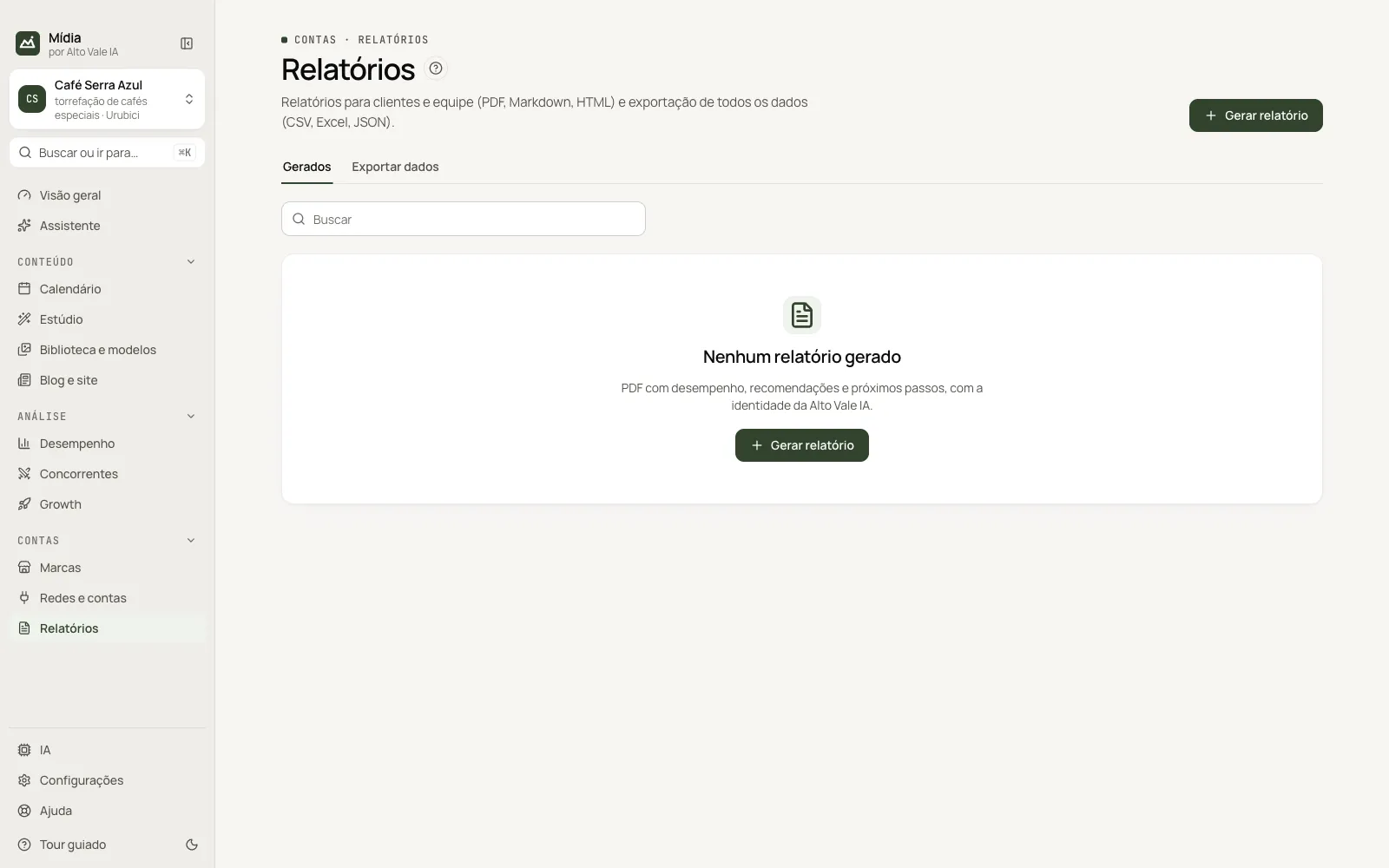
Generate reports in PDF, Markdown or HTML and export all of the brand's data in CSV, Excel or JSON.
What it is for
Deliver the results to the client or the team and take the data out of the app.
Before you start
Collect the metrics and run Analisar (Analyze) in Performance so the report has numbers and recommendations.
Step by step
- Open Relatórios (Reports) and click Gerar relatório (Generate report).
- Tick what goes in and choose the format.
- Click Gerar (Generate) and open the file in the list.
All the actions on the screen
Gerar relatório (Generate report)
Window with Resumo e notas (Summary and scores), Redes sociais (Social networks), Tráfego do site (Website traffic) and Recomendações (Recommendations), and the format PDF, Markdown or HTML. Example: PDF with Summary and Recommendations for Café Serra Azul.
Gerados tab (Generated)
Table with report, brand, format and date, with search. Abrir (Open) opens the file; right-click offers Abrir and Copiar caminho (Copy path).
Exportar dados tab (Export data)
For each set (Recomendações, Conteúdos gerados, Métricas, Posts das redes: Recommendations, Generated content, Metrics, Network posts) the buttons CSV, XLSX and JSON. Example: export "Posts das redes" as CSV for the client's spreadsheet.
Shortcuts
Right-clicking a row opens its actions.
Common problems
The PDF came out without numbers. The metrics have not been collected.
Where did the file go? The "Salvo em…" (Saved at…) notice shows the path; the folder opens with Abrir.
See also
Screen in the app: /reports · In the app, press F1 on this screen to open this guide.
Still have a question?
Talk to the Alto Vale IA team on WhatsApp. Tell us the app, the screen and what happened.